
Choosing the right live streaming software decides how your streams look, who you can bring on, and where they go. In this guide, I ranked and reviewed the 14 best live streaming software, along with my top 5 picks, so you can pick the one that fits how you stream.
 EcammFrom $20 a month, after a 14-day free trial
A live streaming studio built for Mac, with scenes, overlays, guests and multistreaming to 10 destinations.
 RiversideFree plan, live streaming from $39 a month
Studio-quality recording of each guest on their own track, with 1080p streaming to unlimited destinations.
 StreamYardFree plan, or from $44.99 a month
A studio in your browser, with guests from a link, 1080p and multistreaming on Core.
 OBS StudioFree
Free, open-source streaming and recording on Windows, Mac and Linux, with plugins and scripts.
 vMixFrom $60 once, after a 60-day free trial
Broadcast-level production for Windows, up to 4K, with up to eight remote guests on Pro.
I've been live streaming since 2017, first with vMix on Windows, and today with Ecamm on my Mac.
I've streamed to YouTube and Facebook, recorded online courses, and recorded the interviews for my virtual summits with this software.
So I went back through the tools in my old guide, checked each one's own pricing and feature pages, and rewrote what changed. A lot did: StreamYard streams in 1080p now, Wirecast is a subscription, and Ecamm dropped "Live" from its name.
In this guide, I'll show you:
- All 14 tools I reviewed, each with who it's for, key features, pros, cons and pricing
- The best pick for Mac, for Windows, for free and for multistreaming
- What to look for in live streaming software
- What I use today
Every price here is from the tool's own pages, read in October 2026.
 TL;DR
TL;DRKey takeaways
The best live streaming software
Here's every tool I reviewed, with what each is best for and what it costs to start. Each name jumps to its full review:
- Best for
- Mac
- Price
- $20 a month
- Free to try
- 14-day free trial
- Best for
- Podcasts that stream
- Price
- $39 a month, to stream
- Free to try
- Free plan
- Best for
- Going live from your browser
- Price
- $44.99 a month
- Free to try
- Free plan
- Best for
- Free, on any system
- Price
- Free
- Free to try
- Free and open source
- Best for
- Windows
- Price
- $60 once
- Free to try
- 60-day free trial
- Best for
- Pre-recorded and 24-hour streams
- Price
- $15 a month
- Free to try
- Free plan
- Best for
- Multistreaming to 30+ platforms
- Price
- $19 a month
- Free to try
- Free plan
- Best for
- Live events next to your video library
- Price
- $75 a month, billed yearly
- Free to try
- 7-day free trial
- Best for
- Gaming streams
- Price
- FreeUltra from $15.75 a month
- Free to try
- Free plan
- Best for
- Multi-camera shows on Mac and Windows
- Price
- $59 a month
- Free to try
- Free trial, no time limit
- Best for
- Live selling in your browser
- Price
- Shown after sign-up
- Free to try
- 14-day free trial
- Best for
- Live events with tickets and replays
- Price
- $49 a month
- Free to try
- 2-week free trial
- Best for
- Streaming, editing and hosting together
- Price
- $20 a month
- Free to try
- Free plan
- Best for
- Windows, with a lifetime license
- Price
- $14.99 a monthor $119.99 for life
- Free to try
- Free version
1. Ecamm
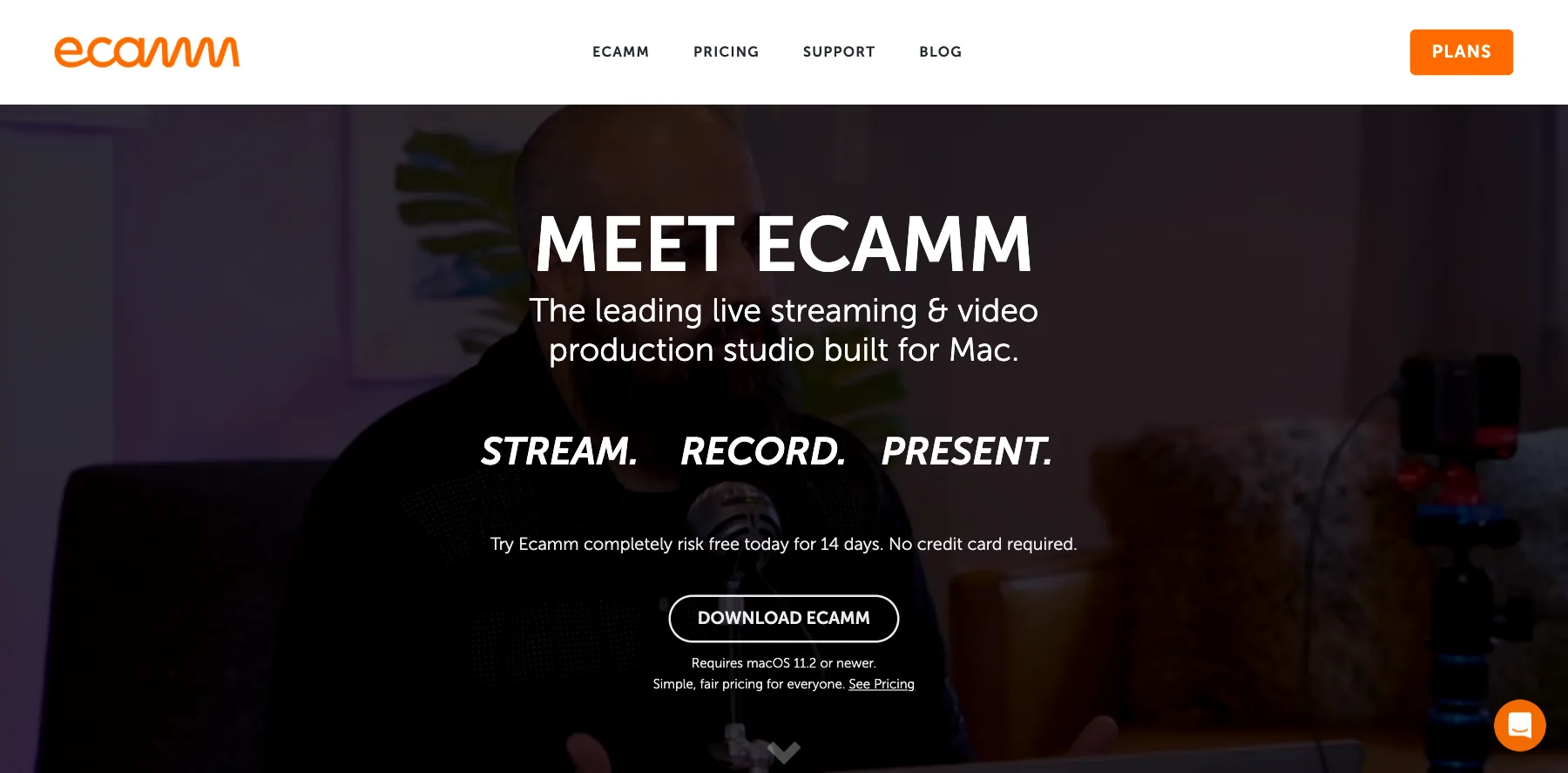
Ecamm is a live streaming and video production studio for Mac. It used to be called Ecamm Live.
It's what I use for my live streams, and I record my summit interviews with speakers in it too, in 4K.
You switch between cameras and saved scenes live, share your screen with picture-in-picture, add your logo, titles and countdowns, and put viewers' comments on screen. Every broadcast is also saved to your Mac as a high-quality recording.
Up to 10 guests can join from their web browser, for a split screen or a layout of your own.
And it multistreams to up to 10 destinations on both plans, so you don't need a separate tool for that.
It only runs on a Mac, with macOS 11.2 or newer.
Who is Ecamm for?
Ecamm is for creators, coaches and businesses on a Mac who want professional live streams and recordings that are easy to run on their own.
Key features
- Live camera switching and saved scenes
- Screen sharing with picture-in-picture
- Your logo, overlays, titles, countdowns and tickers
- Comments from Facebook, YouTube, X, Instagram, Amazon Live and Twitch, on screen
- Up to 10 video guests, who join from their web browser
- Multistreaming to up to 10 destinations
- An automatic high-quality recording of every broadcast
- Green screen and camera effects
- 4K streaming, Ecamm Interview, a virtual camera and mic, and isolated audio and video tracks, on Pro
Pros
- A 14-day free trial of every Standard and Pro feature, with no credit card
- Scenes you set up ahead of time, so a show runs smoothly
- Multistreaming built in, with no separate tool
- Every broadcast saved to your Mac
- A full refund within 14 days of signing up
Cons
- Mac only
- The free trial adds an Ecamm watermark to your broadcasts
- 4K streaming and Ecamm Interview are on Pro
Pricing
Ecamm has two plans, each with a 14-day free trial and no credit card needed, from its pricing page as read on October 1, 2026:
- Standard – $20 a month, or $16 a month billed yearly ($192 a year), with multistreaming to 10 destinations, overlays and screen sharing.
- Pro – $40 a month, or $32 a month billed yearly ($384 a year), adding 4K streaming, Ecamm Interview, a virtual camera and mic, and isolated recording.

A live streaming studio built for Mac, with scenes, overlays, guests and multistreaming to 10 destinations.
I may earn a commission if you make a purchase, at no additional cost to you.
2. Riverside
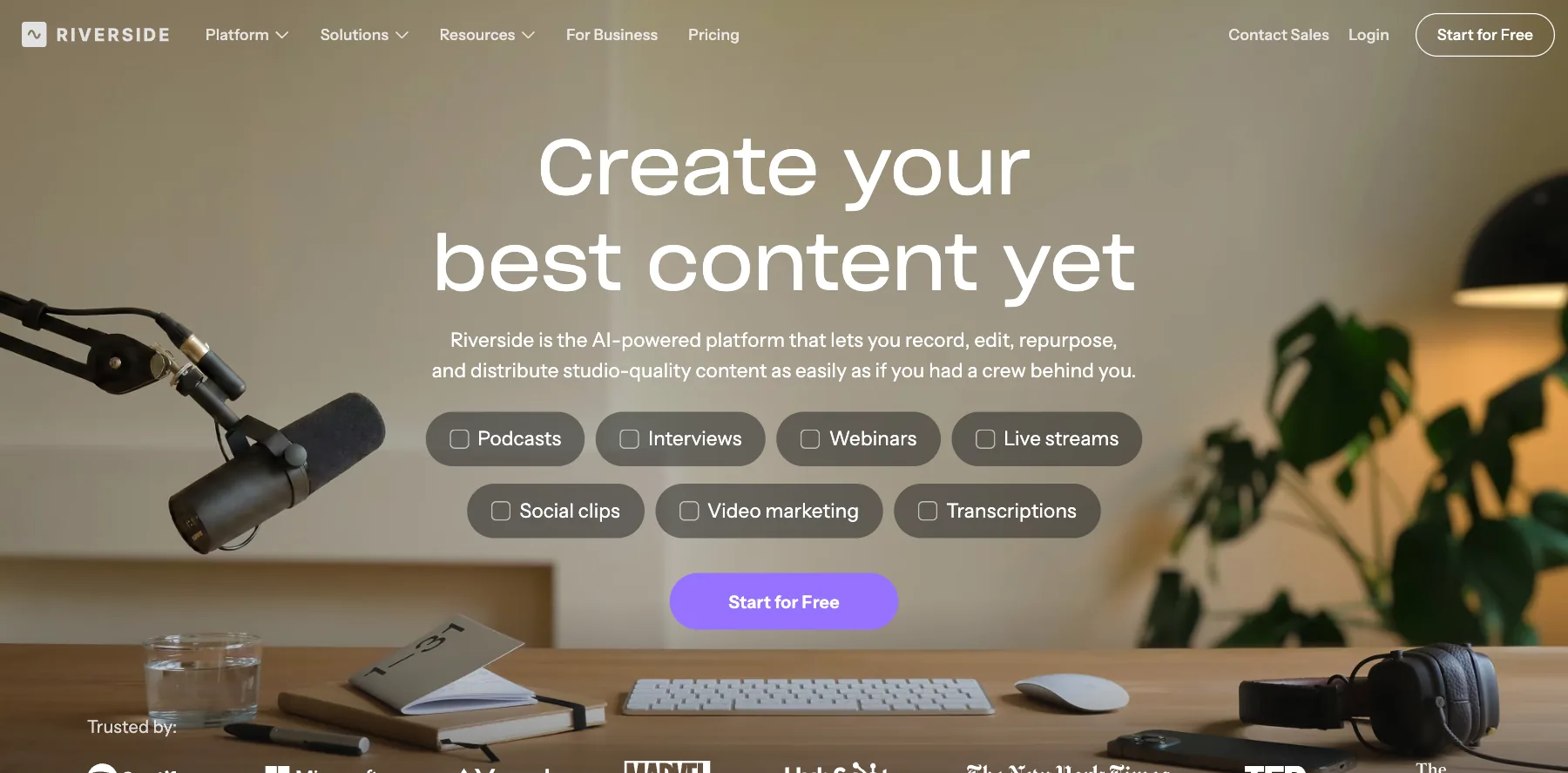
Riverside is a recording and editing platform that also live streams.
You and your guests record in up to 4K, each on your own audio and video track, and you edit the video by editing the text of its transcript.
Live streaming starts on its Grow plan. From there, you stream in 1080p to unlimited destinations at once, including YouTube, Facebook, LinkedIn, X, Twitch, Instagram and TikTok, plus any other platform through custom RTMP.
So it fits when the stream is also a podcast or an interview you want to edit and publish afterwards.
It runs in your web browser, with a Mac app and mobile apps too.
Who is Riverside for?
Riverside is for podcasters and interview shows that stream live and want a studio-quality recording to edit and publish afterwards.
Key features
- Recording in up to 4K video and 48 kHz audio, from Pro
- Separate audio and video tracks for each person
- Text-based editing, transcriptions, captions and Magic Clips
- 1080p live streaming to unlimited destinations, from Grow
- Custom RTMP, multi-aspect ratio streaming and Omnichat, from Grow
- Saved scenes, layouts and overlays in the studio, from Grow
- Webinars with registration, reminders and lead capture, on Webinar
- Podcast hosting, and publishing to YouTube, Spotify and Apple
Pros
- A free plan, and a 14-day free trial of the paid plans
- A studio-quality recording of each guest, on their own track
- Unlimited multistreaming destinations on Grow
- Recording, editing, streaming and podcast hosting in one place
Cons
- Live streaming starts on Grow, at $39 a month
- The free plan records at up to 720p, with a Riverside watermark
- Webinars cost $99 a month
Pricing
Riverside has a free plan and four paid plans, each paid plan with a 14-day free trial, from its pricing page as read on October 1, 2026:
- Free – $0, with up to 720p, a Riverside watermark and two hours of separate-track recordings to try.
- Pro – $29 a month, or $24 a month billed yearly ($288 a year), with up to 4K, no watermark and unlimited text-based editing.
- Grow – $39 a month, or $34 a month billed yearly ($408 a year), adding 1080p live streaming to unlimited destinations.
- Webinar – $99 a month, or $79 a month billed yearly, adding webinars for up to 100 registrants.
- Business – priced on request, with unlimited studios.

Studio-quality recording of each guest on their own track, with 1080p streaming to unlimited destinations.
I may earn a commission if you make a purchase, at no additional cost to you.
3. StreamYard
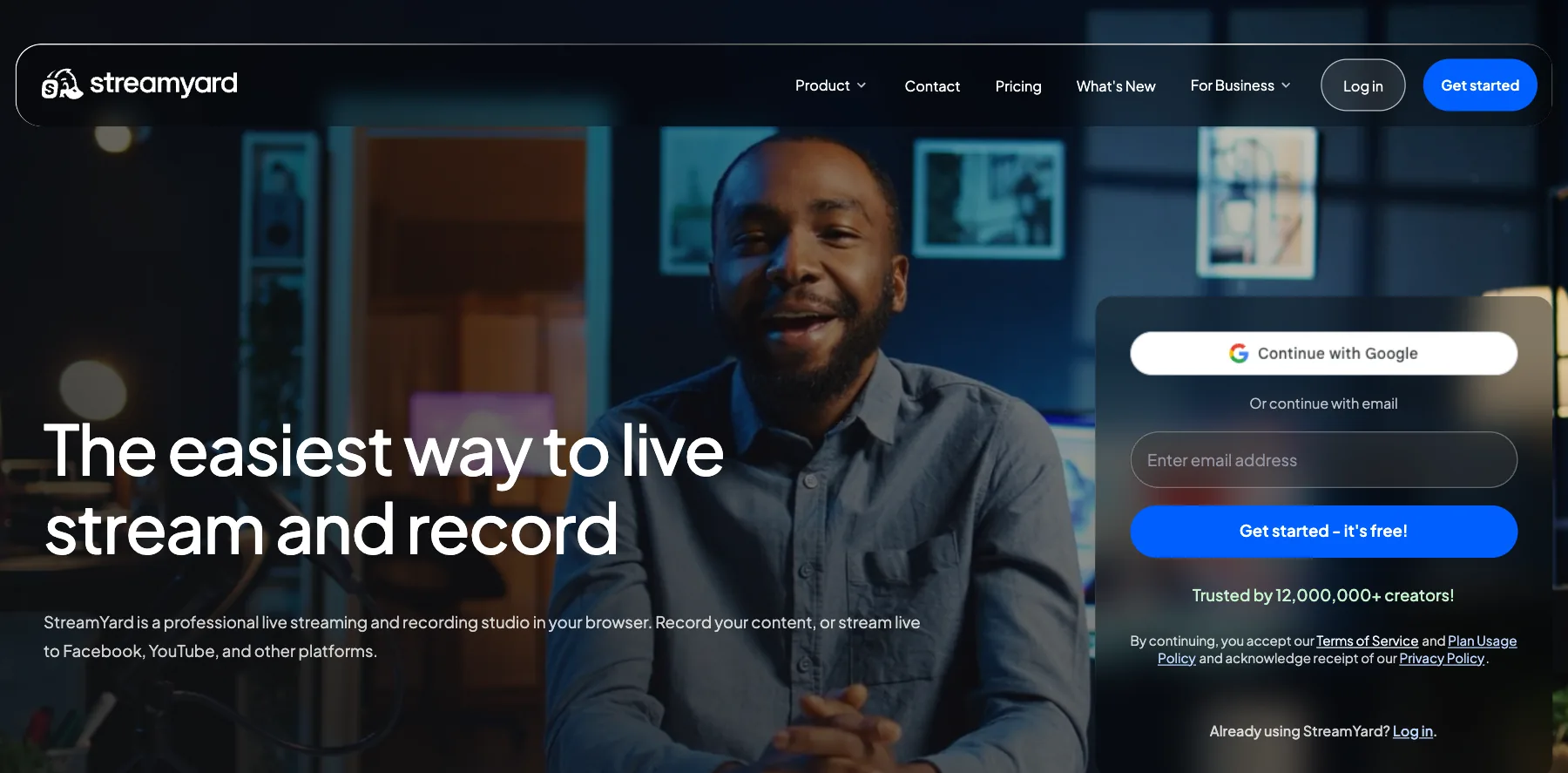
StreamYard is a live streaming studio in your web browser, so it works on a Mac or a PC with nothing to install.
You bring guests in with a link, share your screen, add your logo and overlays, and stream to YouTube, Facebook, LinkedIn and more.
It's the easiest tool here to start with, which is why I've recommended it to beginners for years.
It's also come a long way. When I first wrote about it, it streamed in 720p. Today the Core plan streams in Full HD 1080p, and Advanced records locally in 4K.
StreamYard says over 12 million creators use it, and it's now owned by Bending Spoons.
Who is StreamYard for?
StreamYard is for beginners, coaches and businesses who want the simplest way to go live with guests, on any computer.
Key features
- A studio in your browser, with nothing to install
- Up to 10 people on screen, on Core
- Screen sharing, logos, overlays, video clips and backgrounds
- Multistreaming to three destinations on Core, and eight on Advanced
- Custom RTMP destinations
- Pre-recorded streams
- Unlimited streaming and recording, with local recordings
- AI clips, on Core
- On-Air webinars for 100 viewers, on Advanced
Pros
- A free plan, and a 7-day free trial of Core and Advanced
- The easiest studio here to learn
- Works on any computer, in the browser
- Full HD 1080p on Core
- A 7-day money-back guarantee on your first charge
Cons
- The free plan shows the StreamYard logo, with streaming limits
- Core and Advanced are for one person only
- Multistreaming stops at three destinations on Core
Pricing
StreamYard has a free plan and two paid plans for individuals, each paid plan with a 7-day free trial, from its pricing page as read on October 1, 2026:
- Free – $0, with the StreamYard logo on your streams, streaming limits and six people on screen.
- Core – $44.99 a month, or $35.99 a month billed yearly, with 1080p, no logo, three destinations and 10 people on screen.
- Advanced – $88.99 a month, or $68.99 a month billed yearly, with 4K local recordings, eight destinations and webinars for 100 viewers.
StreamYard Business, for companies and teams, is priced on request.

A studio in your browser, with guests from a link, 1080p and multistreaming on Core.
I may earn a commission if you make a purchase, at no additional cost to you.
4. OBS Studio
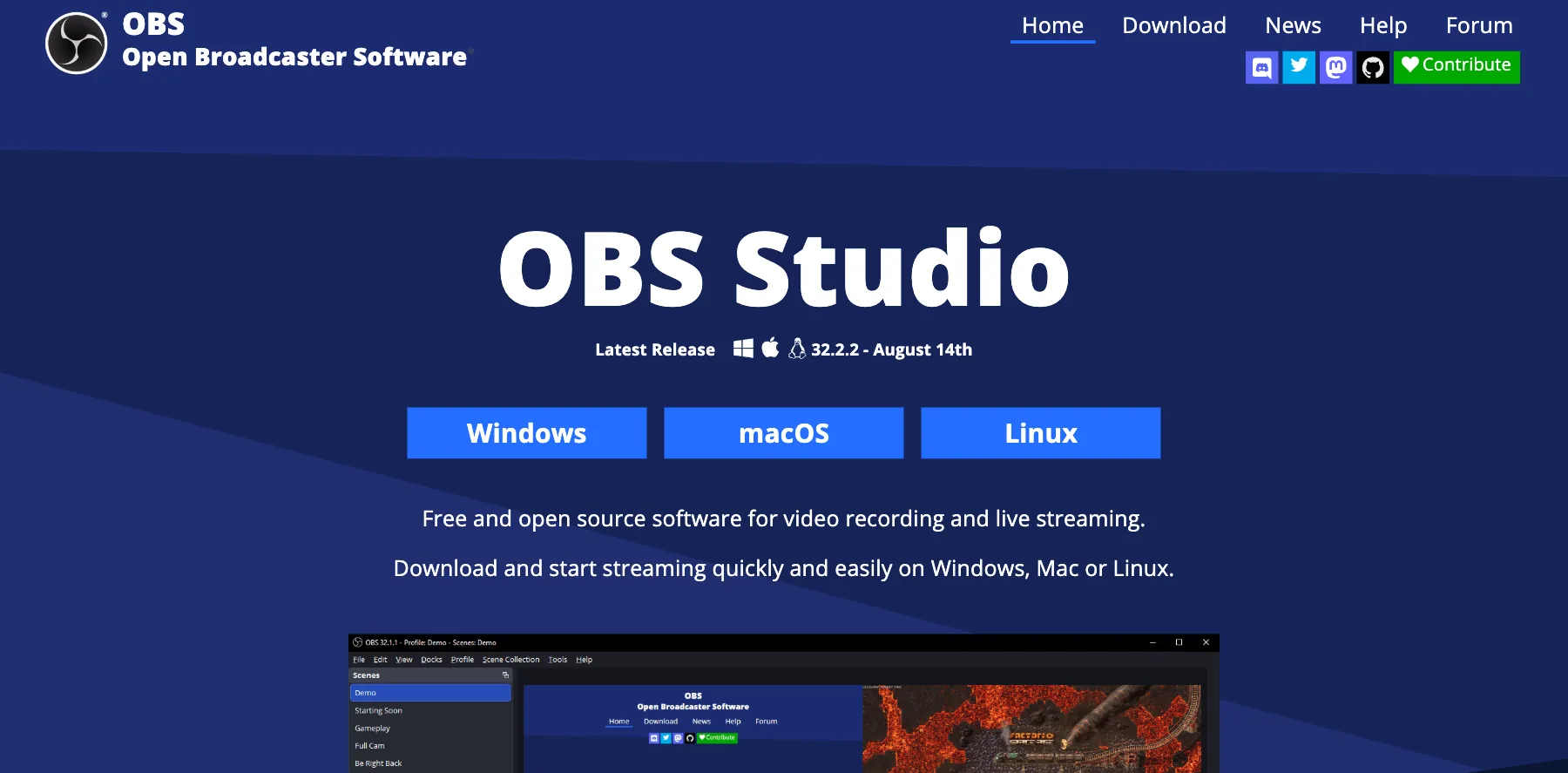
OBS Studio is free, open-source software for recording and live streaming, on Windows, Mac and Linux.
You build scenes from your cameras, screen, windows, images, text and browser sources, then switch between them live with transitions you choose.
It's the most flexible free option here. Plugins, and scripts in Lua or Python, add features it doesn't have out of the box.
And many of the paid tools here can take a stream from it, so you can start with OBS Studio and add a service later.
My own experience with it is mixed. When I used it, I ran into more issues than with Ecamm or vMix, and I never liked the interface much.
Still, it's free, and it runs on all three systems.
Who is OBS Studio for?
OBS Studio is for streamers on a budget, and for anyone happy to spend time on setup in exchange for full control.
Key features
- Scenes from cameras, screens, windows, images, text, browser sources and capture cards
- Unlimited scenes, with custom transitions
- An audio mixer with noise suppression, a noise gate and VST plugins
- Studio Mode, to preview a scene before it goes live
- A Multiview of eight scenes at once
- Hotkeys for almost every action
- Plugins, and scripts in Lua or Python
Pros
- Free and open source
- Runs on Windows, Mac and Linux
- Flexible, with plugins for what's missing
- Works with the popular streaming platforms
Cons
- Takes longer to learn than Ecamm or StreamYard
- Help comes from its forum and Discord, not a support team
- I ran into more issues with it than with Ecamm or vMix
Pricing
OBS Studio is free, with no paid plan. The project runs on sponsors and backers.
The latest release when I checked, on October 1, 2026, was 32.2.2, for Windows 10 and 11, macOS 13 or newer, and Linux.

Free, open-source streaming and recording on Windows, Mac and Linux, with plugins and scripts.
5. vMix
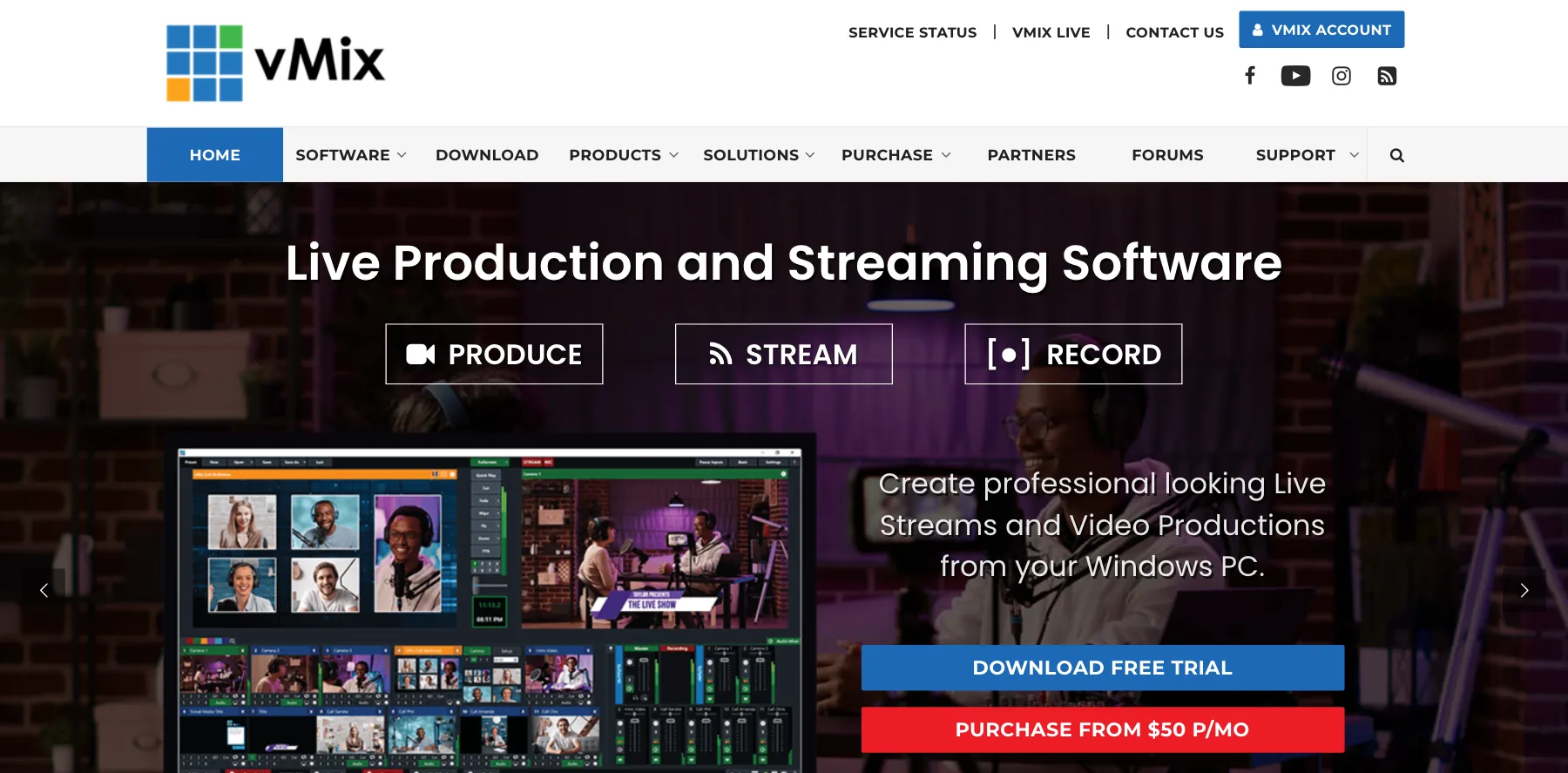
vMix is live production and streaming software for Windows.
I've used it since 2017 to live stream to YouTube and Facebook, and to record online courses and virtual summits.
You can do almost anything with it: up to 1,000 camera and NDI inputs, animated titles, instant replay, a built-in audio mixer, and up to eight remote guests through vMix Call.
It takes time to learn. There are a lot of features and settings, and it took me a while to get comfortable with them.
But I'm not the most technical person, so if I could figure it out, you can too.
And unlike most tools here, you can buy it once and keep it.
Who is vMix for?
vMix is for creators and production teams on Windows who want broadcast-level control, from multi-camera shows to virtual events.
Key features
- Up to 1,000 inputs, including cameras and NDI sources, from HD
- 1080p on Basic HD and HD, and up to 4K on 4K, Pro and MAX
- Streaming, recording and output at the same time
- vMix Call guests: one on HD, four on 4K, and eight on Pro and MAX
- GT Designer, for animated titles, scoreboards and tickers
- Instant replay, from 4K
- A built-in audio mixer
Pros
- A 60-day free trial
- Pay once and keep it, with free updates for the first 12 months
- Up to 4K, with eight remote guests on Pro
- A knowledge base, training videos and forums
Cons
- Windows only
- A steep learning curve
- 4K costs $700, and eight remote guests need Pro, at $1,200
Pricing
vMix has four editions you buy once, each with free updates for the first 12 months, and one monthly plan, from its purchase page as read on October 1, 2026:
- Basic HD – $60 once, with four inputs at up to 1080p.
- HD – $350 once, with 1,000 inputs at up to 1080p and one vMix Call guest.
- 4K – $700 once, with up to 4K and four vMix Call guests.
- Pro – $1,200 once, with eight vMix Call guests and instant replay from eight cameras.
- MAX – $50 a month, with everything in Pro and free updates while you subscribe.
I have the 4K edition, and it's the one I'd suggest to most people, since it adds 4K and four vMix Call guests.

Broadcast-level production for Windows, up to 4K, with up to eight remote guests on Pro.
6. OneStream Live
OneStream Live is a cloud platform for streaming to many places at once: over 45 social platforms and the web.
You can go live from its browser studio, send a stream in from OBS Studio, Zoom or Streamlabs, or schedule a pre-recorded video to go out as a live stream.
For a pre-recorded stream, you upload the video, schedule it, and it goes out on its own, even as a 24-hour stream.
Who is OneStream Live for?
OneStream Live is for creators and businesses who stream the same show to many platforms, or who schedule pre-recorded videos as live streams.
Key features
- Multistreaming to 45+ social platforms and the web
- A studio in your browser
- Streams in from OBS Studio, Zoom, Streamlabs and other software
- Scheduled pre-recorded streams and playlists
- 24-hour streams, on paid plans
- A single chat for all your platforms
- Stream players and branded live pages for your website
- A teleprompter and team seats
Pros
- A free plan, with no credit card needed
- Up to 50 destinations at once, on Enterprise
- Pre-recorded and 24-hour streams
- Works with the software you already stream from
Cons
- Free and Basic stream at 720p, and 1080p starts on Standard
- The free plan streams to two destinations
- Extra destinations, storage and bandwidth cost $10 a month each
Pricing
OneStream Live has a free plan and four paid plans, from its pricing page as read on October 1, 2026:
- Free – $0, with two destinations, 720p and 1 GB of storage.
- Basic – $15 a month, or $12 a month billed yearly ($144 a year), with five destinations at 720p.
- Standard – $39 a month, or $32 a month billed yearly ($384 a year), with 10 destinations at 1080p and four team seats.
- Professional – $49 a month, or $39 a month billed yearly ($468 a year), with 30 destinations and six team seats.
- Enterprise – $99 a month, or $83 a month billed yearly ($995 a year), with 50 destinations and 10 team seats.

Multistream to 45+ platforms, live or pre-recorded, with 24-hour streams on paid plans.
7. Restream
Restream sends your live video to over 30 platforms at once, from its browser studio or from the streaming software you already use.
I've used it with Ecamm to stream to more than one platform at the same time, and it worked well, comments included.
These days Ecamm multistreams on its own, so I don't need Restream for that. But if your software can't, Restream is the best-known way to add it.
Who is Restream for?
Restream is for creators who want to stream to several platforms at once and follow their chats in one place.
Key features
- Multistreaming to 30+ platforms
- Restream Studio, in your browser
- Streams from your own software, as well as its studio
- Analytics for every channel in one place
- Cloud recordings of your streams
- Custom RTMP and SRT channels
- Guest channels, so guests add their own channels to your stream
- Full HD 1080p streaming and 4K recording, from Professional
Pros
- A free plan with two channels
- Works with your own software, or its browser studio
- Stats and chat from every channel in one place
Cons
- The free plan adds Restream branding
- Restream Studio streams in 720p until Professional
- Clips and webinars cost extra on every paid plan
Pricing
Restream has a free plan and three paid plans for creators, from its pricing page as read on October 1, 2026:
- Free – $0, with two channels and Restream branding.
- Standard – $19 a month, or $190 a year, with three channels and no branding.
- Professional – $49 a month, or $470 a year, with five channels, 1080p streaming and 4K recording.
- Business – $239 a month, or $2,390 a year, with eight channels and two team seats.
Clips cost $19 to $59 a month more, and webinars $99 to $299 a month.

One live video to 30+ platforms at once, from its studio or your own software.
8. Vimeo
Vimeo is a video hosting platform, and its Advanced plan adds live streaming, webinars and virtual events.
I've used Vimeo for years to host the videos for my courses, membership sites and virtual events.
So if your videos are on Vimeo already, it keeps your streams and your library in one place.
You go live from Vimeo's browser studio, or send in a stream from your own encoder over RTMPS or SRT. It streams in 720p, 1080p or 4K, and simulcasts to YouTube, Facebook, LinkedIn and Instagram.
Afterwards, the recording stays in your library, to share or embed.
Who is Vimeo for?
Vimeo is for businesses and course creators who host their videos on Vimeo already and want live events in the same place.
Key features
- Live streaming from a browser studio, or from your own encoder over RTMPS or SRT
- 4K live streaming, in encoder mode
- Simulcasting to YouTube, Facebook, LinkedIn, Instagram or any RTMPS destination
- Live chat, polls and Q&A
- Webinars and event analytics
- A live player to embed anywhere
- An AI script helper and a teleprompter
- 7 TB of storage and 10 seats, on Advanced
Pros
- Video hosting and live streaming under one plan
- Up to 4K
- A 7-day free trial
- No ads on your videos
Cons
- Live streaming starts on Advanced, at $75 a month billed yearly
- Backup streams are on Enterprise
- Its full pricing page asks you to log in first
Pricing
Live streaming is on Vimeo's Advanced plan, with a 7-day free trial, from its live streaming page as read on October 1, 2026:
- Advanced – $75 a month billed yearly ($900 a year), which Vimeo says saves $600 a year over monthly billing, with 10 seats and 7 TB of storage.
- Enterprise – priced on request, with backup streams, single sign-on and more seats.

Video hosting with live streaming, webinars and events on its Advanced plan.
9. Streamlabs
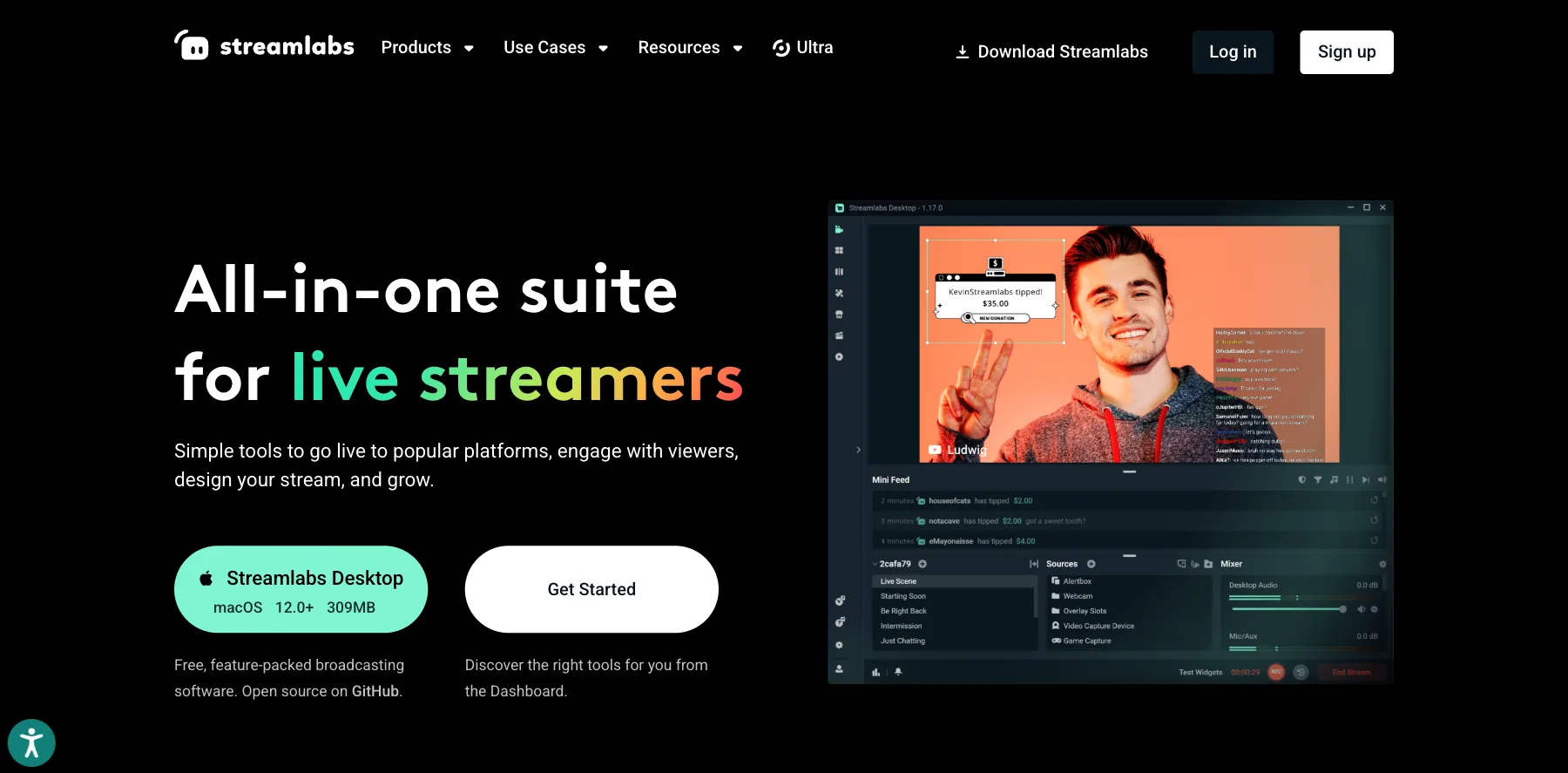
Streamlabs is free streaming software for Windows and Mac. Its desktop app, Streamlabs Desktop, used to be called Streamlabs OBS.
It's made for gaming and creator streams: hundreds of free overlay themes, alerts, a chat bot, and a tip page with no fees from Streamlabs.
The free plan also streams a vertical and a horizontal version at once, with Dual Output.
Multistreaming, the full theme library and most apps come with its paid plan, Ultra.
Who is Streamlabs for?
Streamlabs is for gamers and Twitch and YouTube streamers who want overlays, alerts and tips without paying to start.
Key features
- Streamlabs Desktop, for Windows 10 or newer and macOS 12 or newer
- Hundreds of free overlays and widget themes
- Alerts, a chat box and dozens of widgets
- A tip page with no fees from Streamlabs
- Cloudbot, for chat moderation
- Dual Output, for a vertical and a horizontal stream at once
- Collab Cam, for one guest on free and up to 11 on Ultra
- Multistreaming and the full app store, on Ultra
Pros
- Free to start, on Windows and Mac
- Built for gaming streams, with alerts and tips
- A vertical and a horizontal stream at once, for free
- A mobile app for streaming from your phone
Cons
- Multistreaming needs Ultra
- Most themes and apps need Ultra
- Made more for gaming than for business shows
Pricing
Streamlabs Desktop is free, and Ultra starts at $15.75 a month, from its Ultra page as read on October 1, 2026:
- Free – $0, with Dual Output, free themes, tips and Collab Cam for one guest.
- Ultra – from $15.75 a month, adding multistreaming, the full theme library and app store, and Collab Cam for up to 11 guests.
- Ultra+ – everything in Ultra, plus a one-on-one success call, dedicated support and 30 GB of cloud storage.

Free streaming software for Windows and Mac, with overlays, alerts and tips.
10. Wirecast
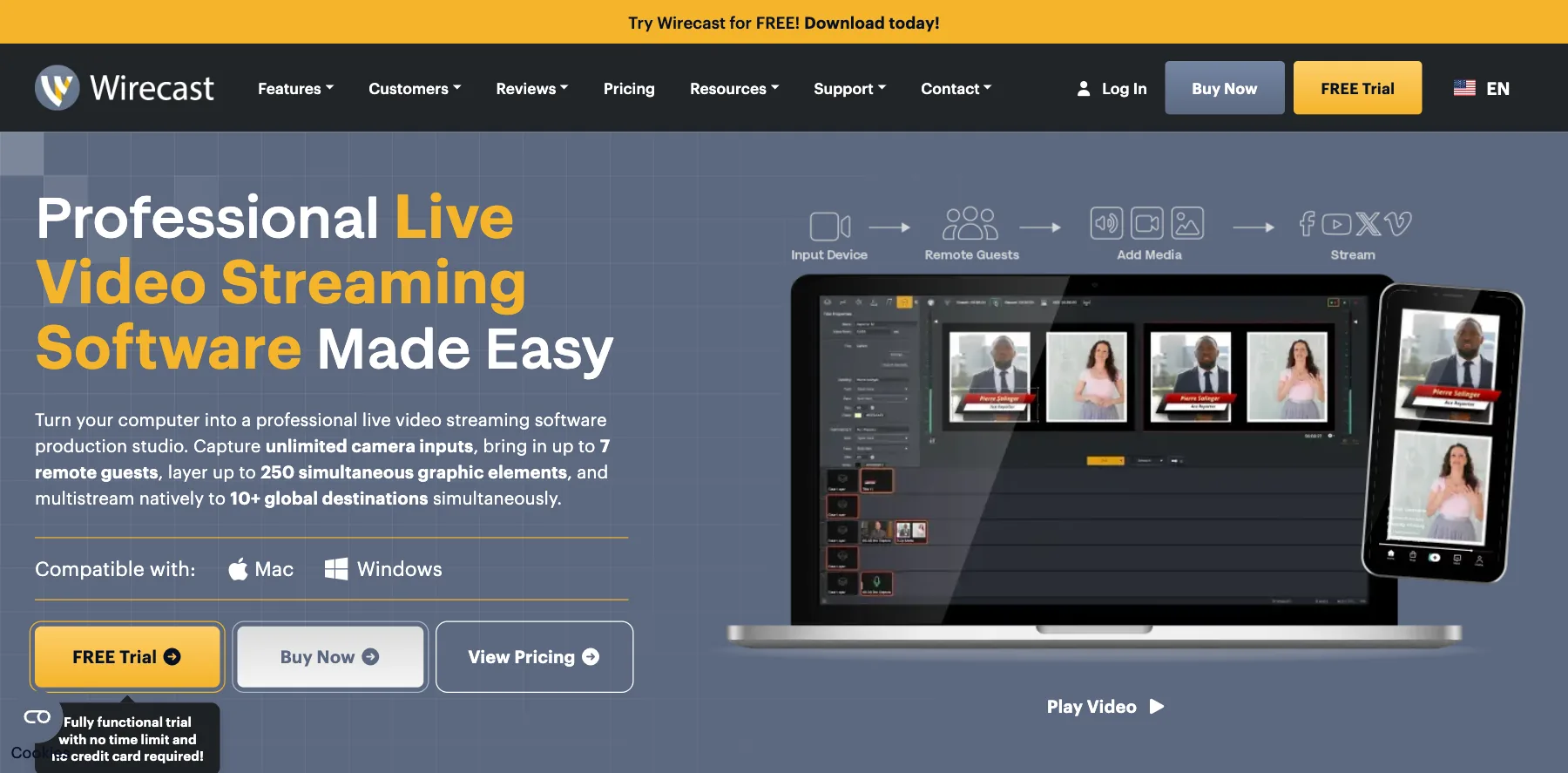
Wirecast is professional live production software for Mac and Windows, from Telestream.
It takes unlimited cameras, up to seven remote guests through its Rendezvous feature, and multistreams to 10+ destinations at once.
I tried Wirecast before I moved to vMix and Ecamm, and it wasn't for me. It was heavy on my computer, and the fans ran nonstop.
Wirecast now encodes on your graphics card, which it says keeps the load off your processor, so a newer computer may fare better than mine did.
It's also changed how you pay. You used to buy it once, and now it's a subscription.
Who is Wirecast for?
Wirecast is for churches, schools, sports and production teams on Mac or Windows who run multi-camera shows with remote guests.
Key features
- Unlimited live camera sources
- Rendezvous remote guests: two on Studio, seven on Pro
- Screen capture, IP cameras and web stream input
- Encoding on your graphics card
- A stock media library with 500,000+ assets
- Cloud multistreaming, ISO recording and multi-track audio, on Pro
- NDI output, PTZ camera control and sports production tools, on Pro
Pros
- Runs on Mac and Windows
- A free trial with no time limit and no credit card
- Guests join from a browser link, with nothing to download
- A dedicated technical support team
Cons
- A subscription now, from $34 a month billed yearly
- Cloud multistreaming is on Pro
- It was heavy on the computer I tried it on
Pricing
Wirecast has two plans, after a free trial with no time limit, from its pricing page as read on October 1, 2026:
- Wirecast Studio – $59 a month, or $34 a month billed yearly, with two remote guests.
- Wirecast Pro – $79 a month, or $42 a month billed yearly, with seven remote guests, cloud multistreaming and ISO recording.

Live production for Mac and Windows, with up to seven remote guests on Pro.
11. Be.Live
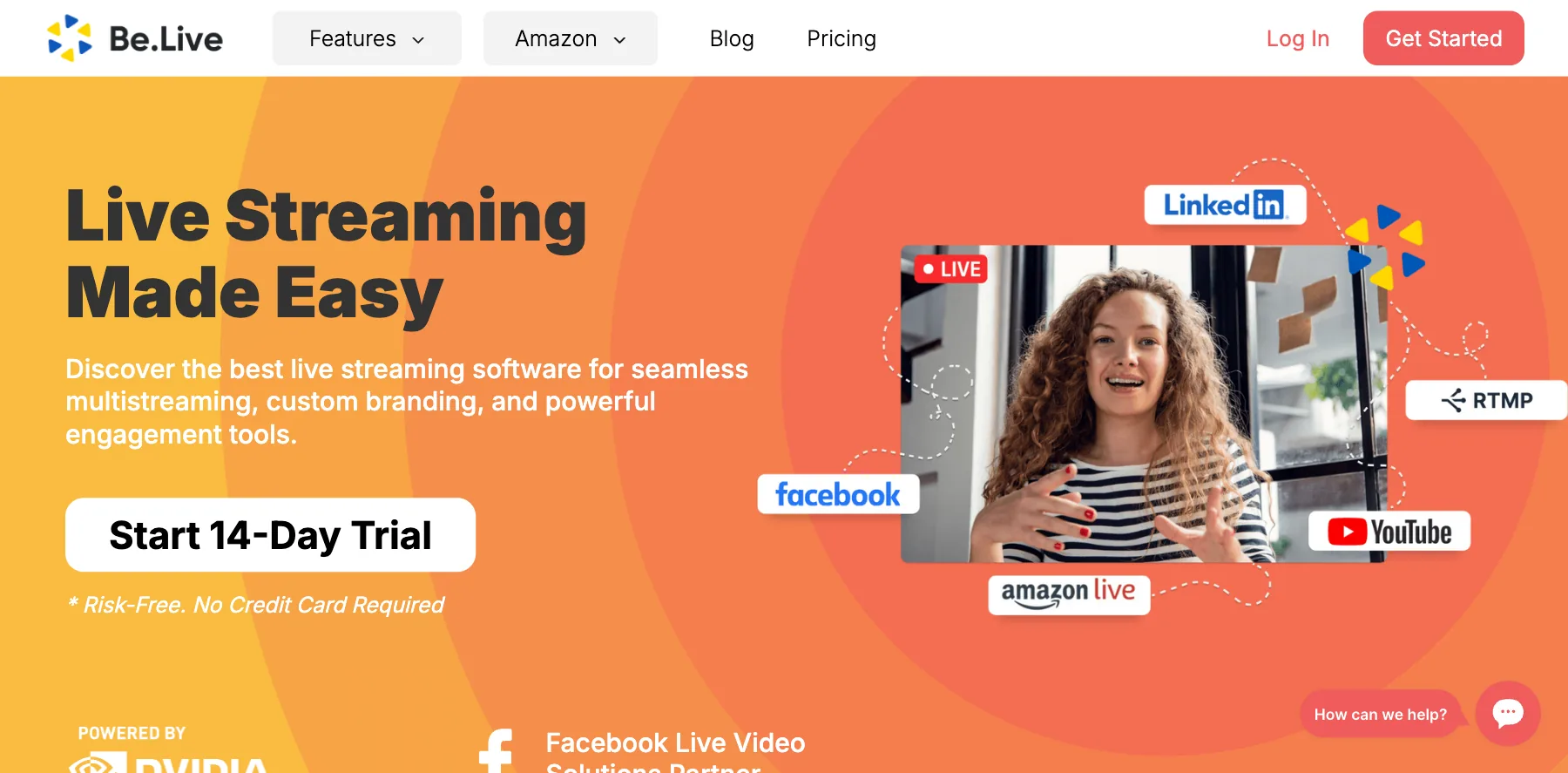
Be.Live is a live streaming studio in your web browser, with branding, an AI comment assistant and tools for live selling.
You add your logo, overlays, backgrounds and lower thirds, then stream to several networks at once. Its AI Comment Assistant can put viewers' comments on screen for you.
It's a Facebook Live Video Solutions Partner, and it now leans into live selling, with Amazon Live and shoppable video.
After a stream, its editor lets you trim it, repurpose it, or export the audio for a podcast.
Who is Be.Live for?
Be.Live is for sellers and creators who want a simple studio in the browser, especially for live selling on Amazon and Facebook.
Key features
- A studio in your browser, with nothing to install
- Multistreaming to several social networks
- Logos, overlays, backgrounds, lower thirds and widgets
- An AI Comment Assistant that features comments on screen
- Widgets like the Snake and the Lottery Jar
- An editor to trim, repurpose and export audio
- Live selling on Amazon Live, and shoppable video
Pros
- A 14-day free trial, with no credit card
- Simple to run, in the browser
- Tools built in for live selling
Cons
- Its prices only show once you sign up
- Built more for live selling than for multi-camera shows
Pricing
Be.Live no longer lists its prices publicly: its pricing page asks you to sign up first, as of October 1, 2026. You can start with a 14-day free trial, with no credit card needed.

A browser studio with branding, an AI comment assistant and tools for live selling.
12. Crowdcast
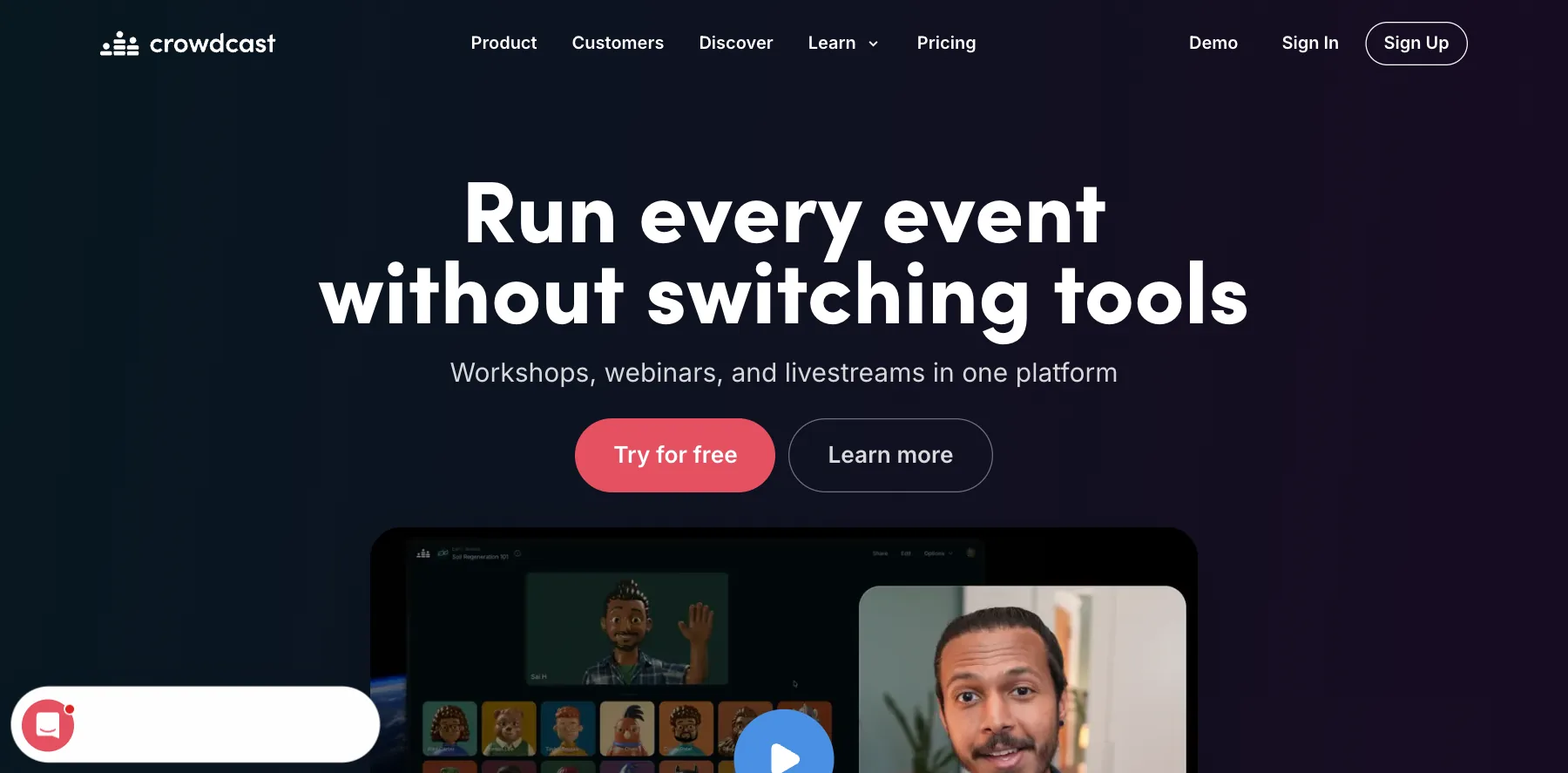
Crowdcast is a platform for live events: workshops, webinars and livestreams, with registration, chat, Q&A and replays in one place.
Your audience joins in the browser, and you can sell tickets through Stripe.
You can also broadcast into it from OBS Studio, Wirecast, Ecamm and other software, with its RTMP mode.
Who is Crowdcast for?
Crowdcast is for creators and businesses who run free or paid live events and want registration, engagement and replays without stitching tools together.
Key features
- HD live video, with recording
- Multi-session events
- RTMP mode, to broadcast from OBS Studio, Wirecast, Ecamm and more
- Stripe, for paid events
- Event and session analytics
- Zapier, and exports of emails, chat and data
- Live captions and custom registration fields, from Pro
- Multistreaming to one destination on Pro, and three on Business
Pros
- A 2-week free trial
- Registration, chat, Q&A and replays in one place
- Works with the streaming software you already use
Cons
- Keeps 5% of ticket sales on Lite and Pro, and 2% on Business
- Hours are capped each month: 10 on Lite, 20 on Pro and 40 on Business
- Sessions last up to two hours on Lite
Pricing
Crowdcast has three plans, after a 2-week free trial, from its pricing page as read on October 1, 2026:
- Lite – $49 a month, or $34 a month billed yearly, with 100+ live attendees, 10 hours a month and a 5% fee on sales.
- Pro – $89 a month, or $62 a month billed yearly, with 250+ attendees, 20 hours, four-hour sessions and one multistream.
- Business – $195 a month, or $136 a month billed yearly, with 1,000+ attendees, 40 hours, a 2% fee and three multistreams.
The free trial lets up to 10 people register for each event, with 60-minute sessions.

Live events with registration, chat, Q&A, replays and paid tickets.
13. Wave.video
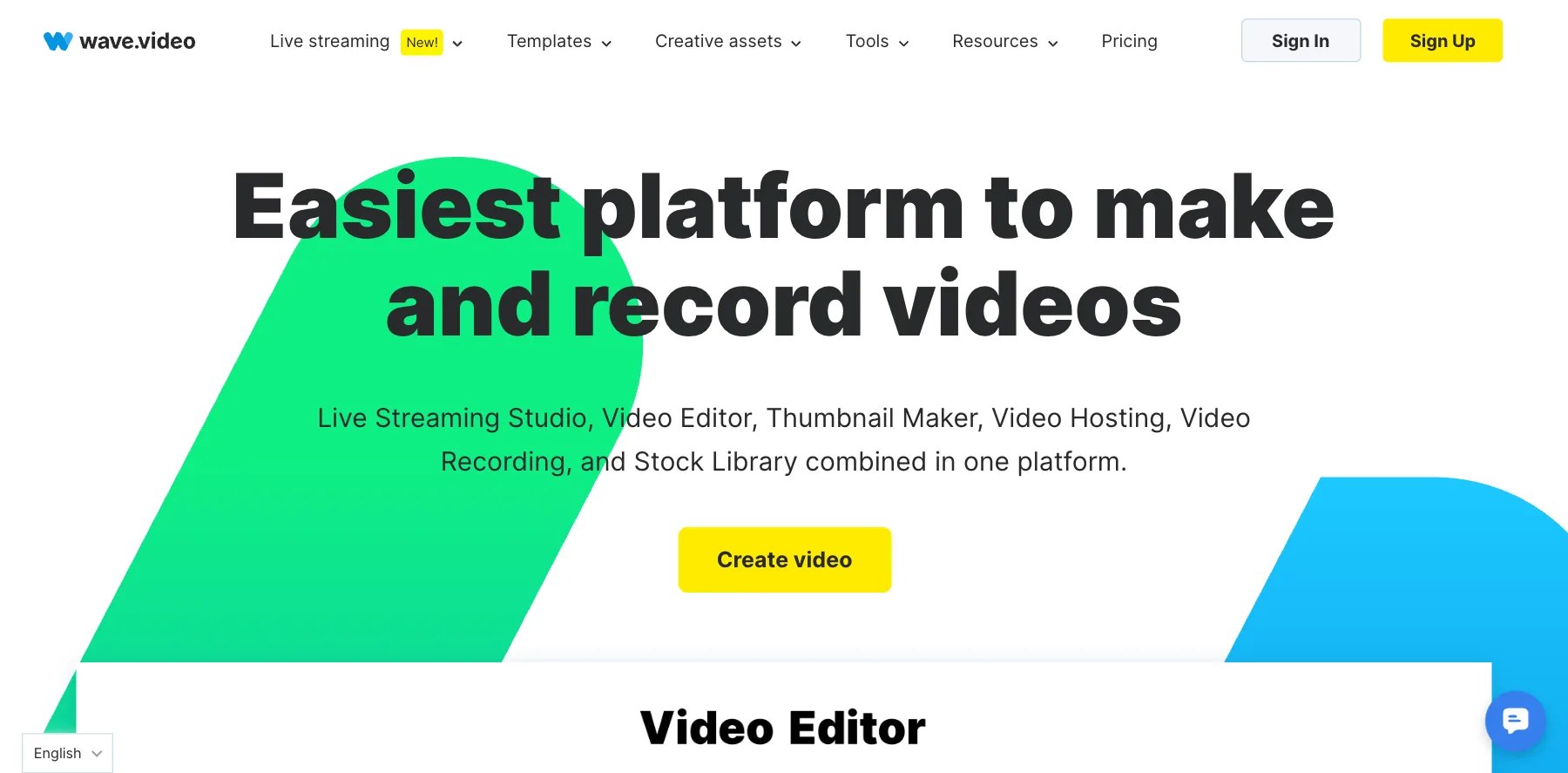
Wave.video puts a live streaming studio, a video editor, a thumbnail maker, video hosting and a stock library in one platform.
Its studio streams to up to 10 channels at once, with up to 12 guests, depending on the plan.
So it fits if you want to stream, then edit and host the video in the same place.
Who is Wave.video for?
Wave.video is for marketers and creators who want streaming, editing and hosting under one subscription.
Key features
- A live streaming studio in your browser
- Up to 10 channels and 12 guests, on Business
- Live streaming scenes, presentations and webinars, from Streamer
- Pre-recorded video streaming
- A video editor and a thumbnail maker
- Video hosting and embeds
- A stock library of 2 million assets and templates
Pros
- A free plan
- Streaming, editing and hosting in one place
- 1080p streams on paid plans
Cons
- The free plan streams with a watermark, at 720p, for up to an hour
- Streams last up to four hours on Streamer and Creator
Pricing
Wave.video has a free plan and three paid plans, from its pricing page as read on October 1, 2026:
- Free – $0, with streams of up to an hour at 720p, with a watermark, to two channels.
- Streamer – $20 a month, or $16 a month billed yearly, with five channels, 10 guests and four-hour streams at 1080p.
- Creator – $30 a month, or $24 a month billed yearly, adding the full video editor for videos up to 30 minutes.
- Business – $60 a month, or $48 a month billed yearly, with 10 channels, 12 guests, 12-hour streams and 500 GB of hosting.
Live streaming, a video editor and video hosting in one place.
14. XSplit
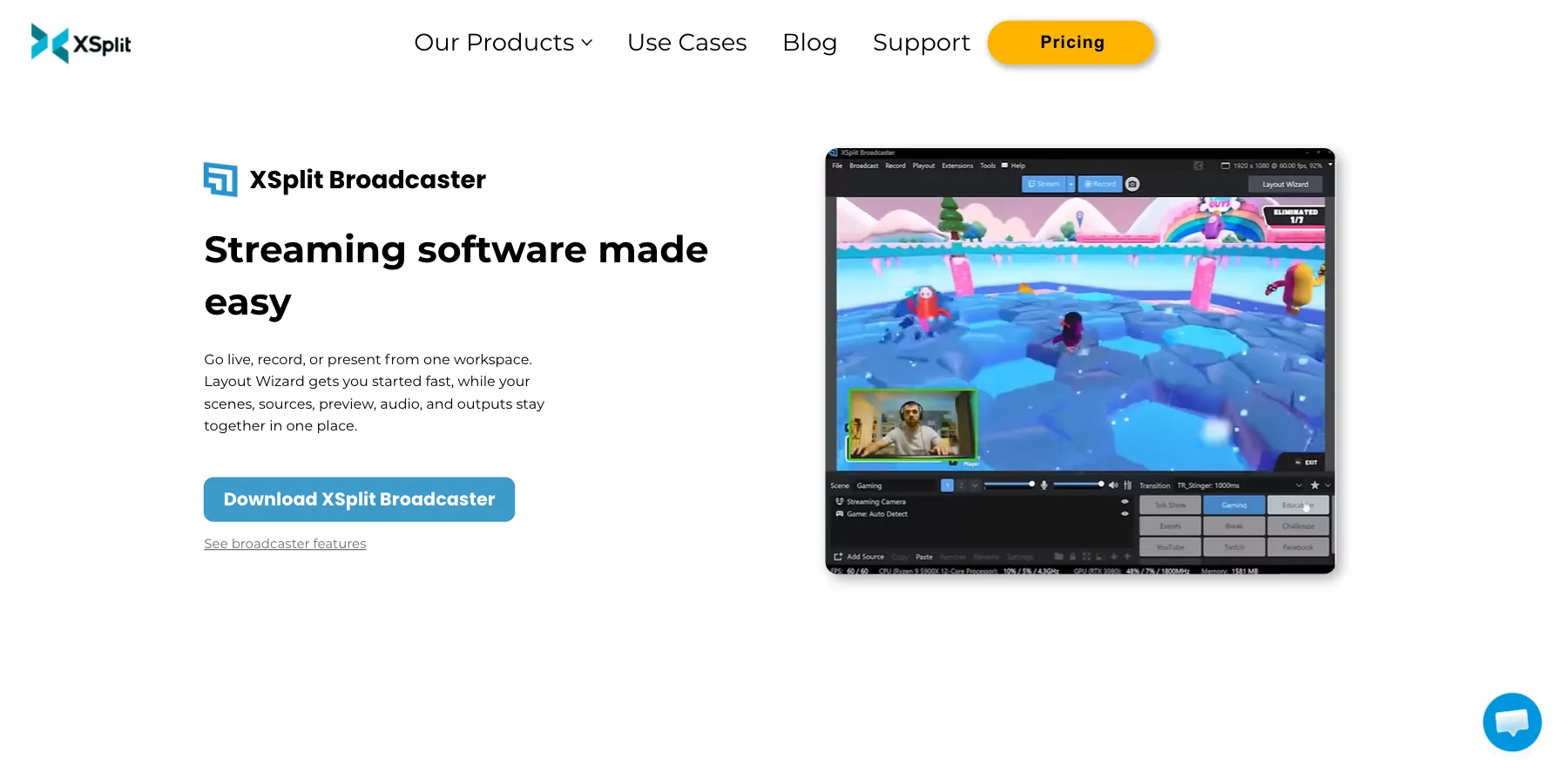
XSplit Broadcaster is live streaming and recording software for Windows.
Its free version streams at up to 720p with no watermark. Premium lifts the limits and adds streaming to several services at once.
And you can buy Premium once, for life, instead of paying every year.
Who is XSplit for?
XSplit is for gamers and Windows streamers who want a simple studio, and a lifetime license instead of a subscription.
Key features
- Scenes with games, text, media, web pages and IP cameras
- AI background removal, voice clarity and live captions
- Chroma key and a virtual camera
- Scene and source transitions
- Plugins and extensions
- Multistreaming, a projector and a preview editor, on Premium
Pros
- A free version with no watermark at 720p
- A lifetime license for $119.99
- AI voice clarity and live captions, even on free
Cons
- Windows only
- The free version shows a watermark above 720p or 30 fps
- The free version allows four scenes, for personal use only
Pricing
XSplit Broadcaster has a free version and one Premium plan, from its pricing page as read on October 1, 2026:
- Free – $0, with four scenes and up to 720p without a watermark, for personal use.
- Premium – $14.99 a month, $59.99 a year, or $119.99 once for a lifetime license.

Streaming and recording for Windows, with a lifetime license.
What is live streaming software?
Live streaming software takes your cameras, microphone, screen and graphics, mixes them into one video, and sends it live to platforms like YouTube, Facebook, LinkedIn and Twitch.
You can go live on YouTube or Facebook directly. But live streaming software is what lets you add guests, overlays, your logo and pre-recorded videos, and stream to several platforms at once.
It comes in four kinds:
Desktop software
Installed on your computer, with the most control, like Ecamm, vMix, OBS Studio, Wirecast, Streamlabs and XSplit.
Browser studios
Nothing to install, and guests join from a link, like StreamYard, Riverside, Be.Live and Wave.video.
Multistreaming services
They take one stream and send it to many platforms, like Restream and OneStream Live.
What to look for in live streaming software
Five things decide most of it:
- Your computer – Ecamm runs only on a Mac, and vMix and XSplit only on Windows. OBS Studio runs on all three, and browser studios run on anything.
- Guests – how many people you can bring on, and whether they join from a link. StreamYard puts up to 10 people on screen on Core, and vMix takes up to eight remote guests on Pro.
- Quality – 1080p is the norm on paid plans now. Ecamm Pro and vMix stream in up to 4K, and Riverside and StreamYard Advanced record in 4K.
- Multistreaming – Ecamm, Riverside, StreamYard and OneStream Live send one stream to several platforms. The free plans of Restream, OneStream Live and Wave.video stop at two.
- The price over time – a license you buy once can cost less than a subscription after a year or two. XSplit's lifetime license costs about the same as two years of its yearly plan.
The best live streaming software for Mac
Ecamm is the best live streaming software for Mac. It's built only for Mac, and it's what I use for my own live streams.
If you'd rather not install anything, StreamYard and Riverside run in your web browser, and OBS Studio is the free option.
The best live streaming software for Windows
vMix is the best live streaming software for Windows, and the one I used for years.
For less, XSplit has a free version and a $119.99 lifetime license, and OBS Studio is free.
The best free live streaming software
Here's the best free live streaming software, if you're on a budget:
- OBS Studio – free and open source, on Windows, Mac and Linux.
- Streamlabs – free, with overlays, alerts and tips, on Windows and Mac.
- StreamYard – a free plan in your browser, with the StreamYard logo and streaming limits.
- XSplit – a free version for Windows, at up to 720p with no watermark.
Free software like OBS Studio has no support team, so help comes from its forum and community.
The best live streaming software for beginners
The easiest to start with are StreamYard, which runs in your browser, Ecamm on a Mac, and Be.Live, another browser studio.
All three let you try them free before you pay.
The best live streaming software for YouTube, Facebook and Twitch
For YouTube and Facebook, I'd pick Ecamm on a Mac, vMix on Windows, or StreamYard for something simpler in your browser.
For Twitch, Ecamm and vMix both stream in high quality, and Streamlabs adds the alerts and overlays that gamers use.
The best live streaming software for multistreaming
Ecamm, Riverside, StreamYard and Wirecast Pro multistream on their own now, so you may not need a separate service.
If your software can't, Restream sends one stream to 30+ platforms, and OneStream Live to 45+, with scheduled pre-recorded streams too.
What I use
I use Ecamm on my Mac for my live streams, and to record the interviews with speakers for my virtual summits.
Before that, I streamed with vMix on Windows for years. It's still the most powerful tool here if you're on a PC.
For cameras, microphones and lights, see my video gear guide.
Some links in this guide are affiliate links: if you sign up through one, I may earn a commission, at no cost to you.
FAQs about live streaming software
Here are answers to the questions people ask most about live streaming software.
Ecamm is my pick on a Mac, and vMix on Windows.
For the easiest start in your browser, I'd pick StreamYard, and OBS Studio if you want it free.
OBS Studio is free and open source, on Windows, Mac and Linux.
Streamlabs and XSplit have free versions, and StreamYard has a free plan in your browser.
Ecamm is the best for Mac, since it's built only for Mac.
It has a 14-day free trial, then costs $20 a month, or $16 a month billed yearly.
vMix is the best for a Windows PC.
You can buy it once, from $60, after a 60-day free trial.
StreamYard is the easiest, since it runs in your browser and guests join from a link.
It has a free plan, and a 7-day free trial of its paid plans.
You can, with multistreaming.
Ecamm, Riverside, StreamYard and OneStream Live do it on their own, and Restream sends one stream from your software to 30+ platforms.
OBS Studio is free and open source, with no paid plan.
The project runs on sponsors and backers.
You need live streaming software, a camera, a microphone and a steady internet connection.
My video gear guide covers the cameras, microphones and lights.
Ecamm, Riverside, StreamYard and Wirecast Pro multistream on their own.
Restream sends one stream to 30+ platforms, and OneStream Live to 45+.
Final thoughts on live streaming software
There are a lot of live streaming tools out there, so it comes down to your computer, your budget and the features that matter most to you.
Here are my final recommendations:
The best live streaming software for Mac, and the one I use. It's easy to start with, and streams in up to 4K on Pro.
Try Ecamm freeThe best when your stream is also a podcast, with each guest recorded on their own track.
Try Riverside freeThe easiest way to go live, right from your browser, and now in 1080p on Core.
Try StreamYard freeThe best free live streaming software, on Windows, Mac and Linux, if you don't mind some setup.
Download OBS StudioThe best and most advanced live streaming software for Windows, and a license you buy once.
Try vMix freeThe best way to multistream when your software can't, to 30+ platforms at once.
Try Restream freeNow I'd like to turn it over to you. Which live streaming software will you use? Or do you use a great one I didn't cover? Send me a message and tell me.
Keep reading:
- How to host a virtual summit – plan, run and grow your own online summit
- Types of virtual events – the kinds of events you can stream
- Video gear guide – cameras, microphones and lights for your streams
Start the free trial of the one that fits your computer, and run a test stream before you go live for real.
Navid Moazzez
AI business strategist & AI OS builder
Navid Moazzez helps creators and founders master AI and build their own AI Operating System (AI OS) to automate their business and life.
Navid.me is reader-supported. When you buy through links on this site, I may earn an affiliate commission. Learn more.
Similar articles
100 best virtual event examples to model in 2026

21 benefits of virtual events for creators in 2026

100 best questions to ask guest speakers at a virtual event

50 top virtual event ideas that actually work in 2026

19 types of virtual events for creators & marketers in 2026

How to promote a virtual event: 17 tips and a 6-week plan

What is a virtual summit? The complete guide (2026)

What is a telesummit? And why video summits replaced them
21 virtual event mistakes and how to avoid them
21 online event marketing strategies that work in 2026

What is a virtual event? The complete guide for 2026

How to host a virtual summit that converts (2026 guide)
Related free tools

 X
X Bluesky
 LinkedIn
 Threads

 Mastodon
 Instagram
 TikTok
 Pinterest
 YouTube

 Free AI newsletter
The most actionable AI newsletter for founders
Every week, get proven AI strategies, curated tools, and step-by-step systems to grow your audience, create better content, and build a profitable creator business.
No fluff, no filler, no BS. Just five minutes each week that might level up your online business and life.
P.S. Sign up now to get free access to my ultimate AI tools guide for creators.