
17 hidden Claude Code commands most people never find
Claude Code ships 118 built-in commands and most people use about a dozen. These are the 17 worth learning next, grouped by the problem each one solves.

The list that prompted this page had 19 entries of hidden Claude Code commands. 16 of them are real built-in commands. The other 3 are not commands at all, which is the problem with a list nobody checked: a wrong answer reads exactly like a right one.
In this guide, I'll show you:
- How to ask a question without killing the run
- How to see what you are spending, then get it back
- How to go backwards, which is the one thing chat cannot do
- The commands that keep working when you do not
- How to read your own history back
- The 3 things on that list that are not commands
So everything below was matched against the Claude Code command reference first. If a command is here, it exists, and its description is the official one.
 TL;DR
TL;DRKey takeaways
/btw asks a side question without stopping the run, and /rewind takes the conversation and the code back to an earlier point./context shows what is filling the window, and /clear, /effort and /model spend less of it./loop, /schedule and /remote-control keep work going when you step away./skill-creator and /caveman are skills you install, and ULTRATHINK is a word you type. None of the 3 is a built-in command.Ask a question without killing the run
The most expensive habit in Claude Code is stopping a working session to ask something small. You lose the run, and the answer you get costs you the 4 minutes of work you cancelled to ask it.
/btw [question]
Ask the side question and let the work continue. Run it with no question and it shows you the last one, so earlier answers stay reachable.
Official: Ask a side question about the current session without adding to the conversation.
/advisor [model|off]
It hands the hard decision to a second model before Claude commits to an approach, rather than after you have read 200 lines of the wrong one.
Official: Enable or disable the advisor tool, which consults a second model for guidance at key moments during a task.
See what you are spending, then get it back
Context is the budget. Most people never look at it, then wonder why the answers got worse an hour in. These 4 make the budget visible and give you 3 different ways to spend less of it.
/context [all]
It draws the window as a grid, so you can see what is filling it instead of guessing.
Official: Visualize current context usage as a colored grid.
/clear [name]
It's the cheapest accuracy fix there is. Old context does not sit there harmlessly, because it competes with the task in front of you.
Official: Start a new conversation with empty context.
/effort [level|auto|status|ultracode [on|off]]
Turn the reasoning down for work that does not need it. Most sessions do not need max on every turn.
Official: Set the effort level: low to xhigh, max, or auto; status prints it.
/model [model]
It's the other half of the same lever, and it sticks as your default for new sessions.
Official: Switch the AI model and save it as your default for new sessions.
Go backwards, which is the one thing chat cannot do
A chat window is a one way street. These 3 are the exits: undo a conversation, find one from last week, and give the current one a name you will recognise.
/rewind
It takes the conversation and the code back to an earlier point. Its aliases are /checkpoint and /undo, which is what most people search for first.
Official: Rewind the conversation and/or code to a previous point, or summarize from a selected message.
/resume [session]
Reopen a session by id or name, or pick from the list. The work you did on Tuesday is not gone.
Official: Resume a conversation by ID or name, or open the session picker.
/rename [name]
Name the session and the name shows on the prompt bar. This is what makes /resume usable a week later.
Official: Rename the current session and show the name on the prompt bar.
Work that keeps going when you do not
These are 3 different answers to the same question, which is what happens to a task once you close the laptop.
/loop [interval] [prompt]
It repeats a task while the session stays open, on an interval you set.
Official: Run a prompt repeatedly while the session stays open.
/schedule [description]
It moves the task off your machine entirely. It runs in the cloud on a cron, whether or not your terminal is open.
Official: Create, update, list, or run routines, which execute in the cloud.
/remote-control
It makes the running session reachable from claude.ai, so you can steer it from a phone.
Official: Make this session available for Remote Control from claude.ai.
Read your own history back
Claude Code has been keeping records of how you work. Almost nobody reads them, and these 3 do.
/insights
It writes an HTML report on your recent sessions, covering which projects, how you use it, and where things go wrong.
Official: Generate an HTML report analyzing your recent sessions on this machine: which projects you work in, how you use Claude Code, where things go wrong, and features to try.
/team-onboarding
It turns that same history into a guide for somebody joining. The onboarding doc writes itself from what you already did.
Official: Generate a team onboarding guide from your Claude Code usage history.
/fewer-permission-prompts
It reads your transcripts for the read-only calls you keep approving, then writes the allowlist so you stop approving them.
Official: Scan your transcripts for common read-only Bash and MCP tool calls, then add a prioritized allowlist to project .claude/settings.json to reduce permission prompts
The 2 that change the terminal itself
They're small, and you will notice them every day.
/statusline
It puts what you care about on the prompt bar. Context left and spend are the 2 most people choose.
Official: Configure Claude Code's status line.
/chrome
It opens the settings for Claude in Chrome. This is the one the article called an extension rather than a command.
Official: Configure Claude in Chrome settings
3 things on that list that are not commands
Naming them matters, because each one sends somebody to a prompt to type something that does nothing, and they conclude the tool is broken rather than the list.
/skill-creator
It's a skill, not a built-in. You install it before you can run it, and it does not appear in the command reference.
/caveman
It's also a skill, and an open-source one. Claude Code doesn't ship with it, but it's worth installing.
ULTRATHINK
It's a word you type in a prompt, not a command. The built-in that sets reasoning depth is /effort.
The other 101
17 is where to start, not where it ends. The full reference is on all Claude Code commands, every one of them read from the same source as this page.
More AI coding tools I've reviewed
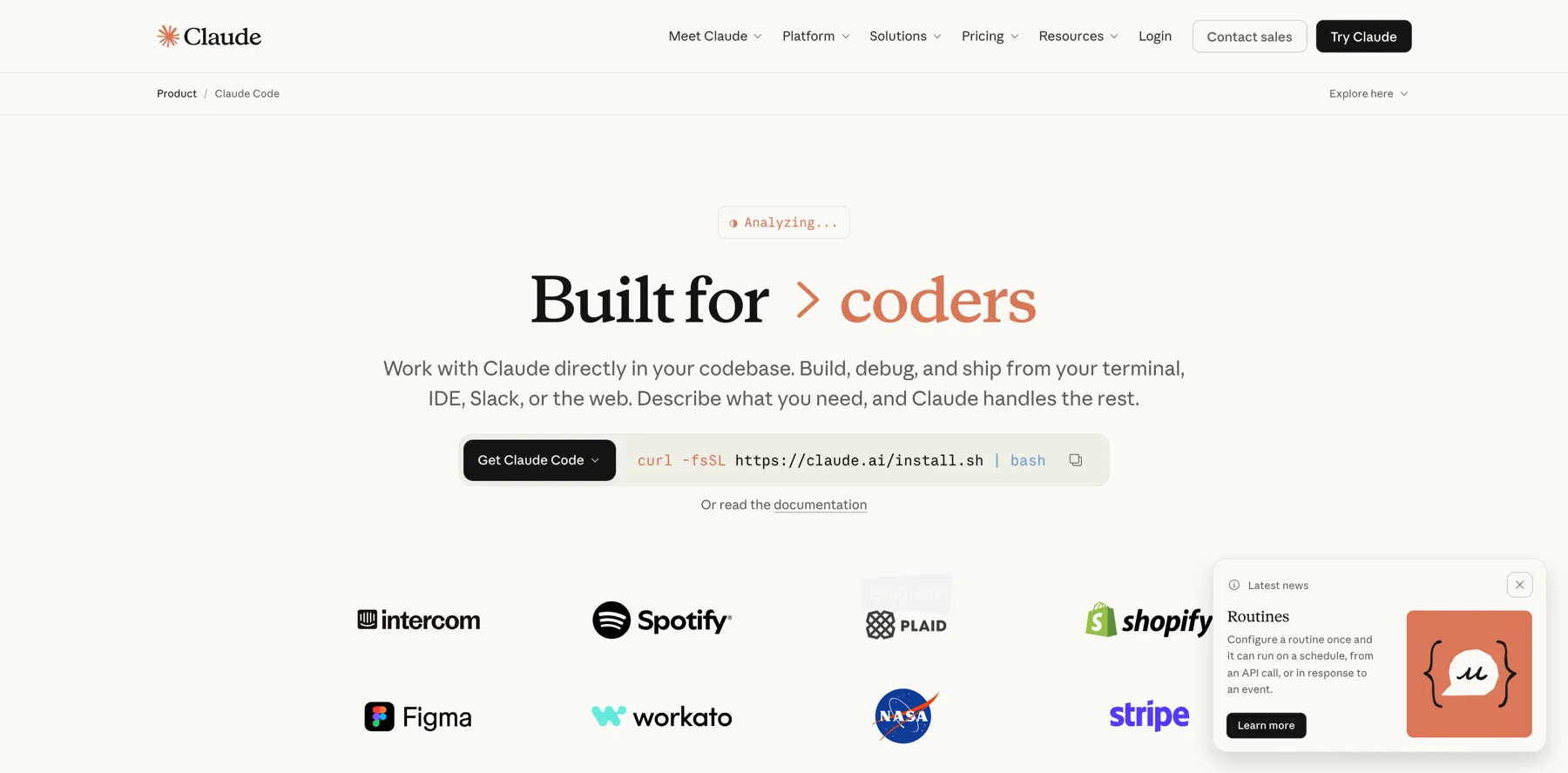
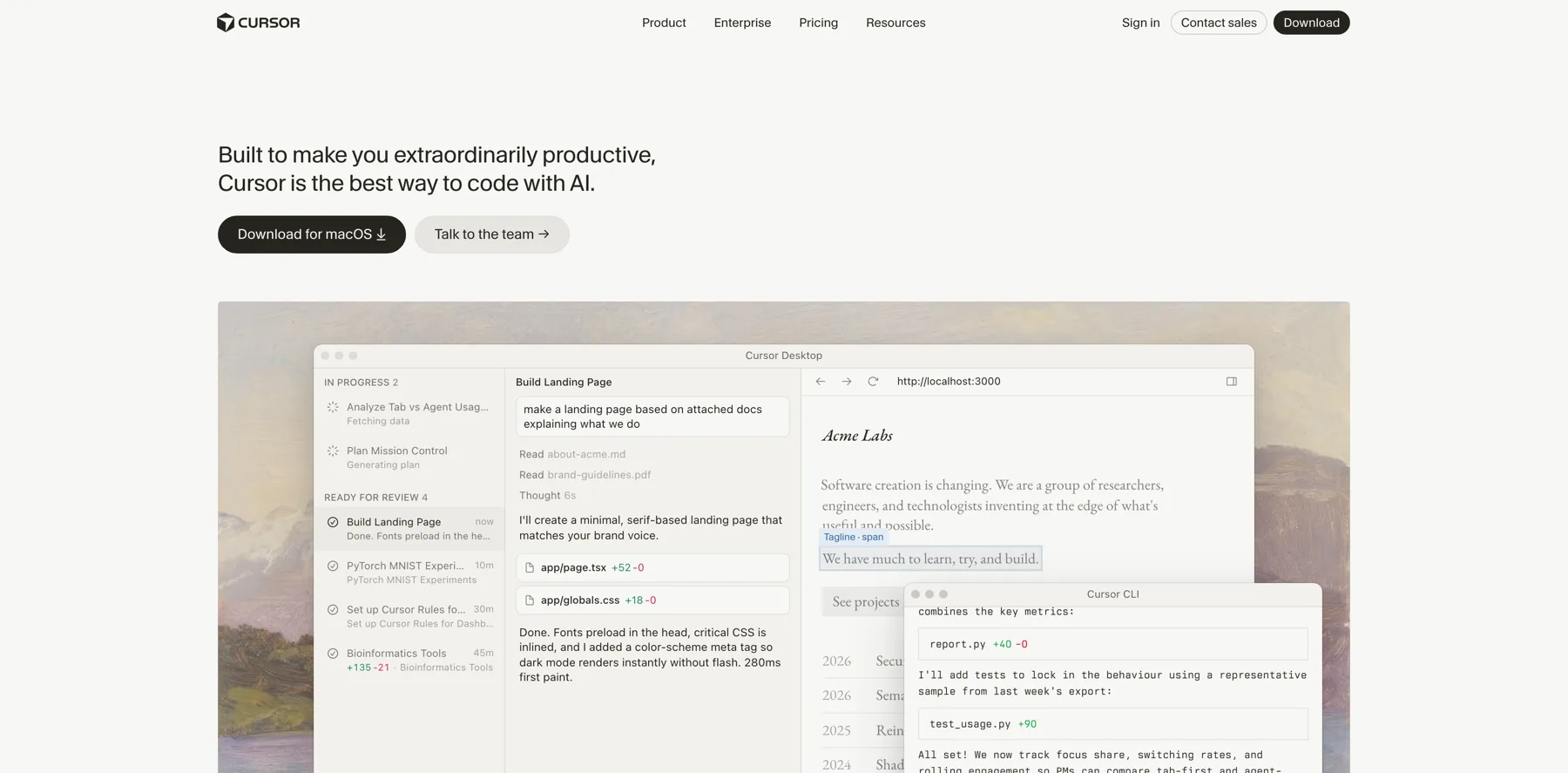
These are my reviews of Claude Code and the agents I compare it with:




FAQs about hidden Claude Code commands
Have questions about Claude Code commands? Find answers to the most common ones below.
They are real built-in commands that most people never find.
Most people meet about a dozen, usually by accident.
The 17 on this page are the ones worth learning next, each one checked against Anthropic's command reference.
Use `/btw`, which answers the side question while the work continues.
Run it with no question and it shows you the last one, so earlier answers stay reachable.
Use `/rewind`, which takes the conversation and the code back to an earlier point.
Its aliases are `/checkpoint` and `/undo`, which is what most people search for first.
Run `/context`, which draws the window as a grid so you can see what is filling it instead of guessing.
Then `/clear` gives the space back when you move to a new task.
`/schedule` moves the task off your machine entirely, so it runs in the cloud on a cron whether or not your terminal is open.
`/loop` only repeats a task while the session stays open.
ULTRATHINK isn't a command.
It's a word you type in a prompt.
The built-in that sets reasoning depth is `/effort`.
Neither one is built in.
Both are skills you install before you can run them.
Neither appears in Anthropic's command reference.
Type `/` at the prompt and the menu opens with all of them.
The full list of 118, grouped by when you use them, is in Claude Code commands.
Final thoughts on hidden Claude Code commands
A wrong answer reads exactly like a right one, which is why every command here was checked against the reference first.
Keep reading:
- Claude Code commands – all 118, grouped by when you reach for one
- Claude Code permission modes – the 6 modes, and the keypress that switches them
- What is Claude Code? – what it does, and whether it is for you
- How to install Claude Code – every route, and which ones update themselves
Then try /btw the next time you want to stop a run to ask something small. And when you'd rather write a better prompt than stop a run, my Claude Code prompt generator builds one for you.
Navid Moazzez
AI business strategist & AI OS builder
Navid Moazzez helps creators and founders master AI and build their own AI Operating System (AI OS) to automate their business and life.
Navid.me is reader-supported. When you buy through links on this site, I may earn an affiliate commission. Learn more.
Similar articles
How to set up VS Code for Claude Code (in one command)
What is a token in AI? The 4 kinds and what each one costs
How to build an AI operating system (AI OS)
All 6 Claude Code permission modes, and what each one allows
All 118 Claude Code commands, and when to use each
What is a vibe creator? (And how to become one)
How to install Claude Code: 8 ways, and which one to pick
What is vibe coding? (And how it works)
How to build an AI voice agent (step by step)
What is Claude Code? What it does, where it runs and what it costs
10 biggest AI lessons to 10x your creator business (2026)

How to make money with AI as a creator: 15 real ways (2026)
Related free tools


 Free AI newsletter
The most actionable AI newsletter for founders
Every week, get proven AI strategies, curated tools, and step-by-step systems to grow your audience, create better content, and build a profitable creator business.
No fluff, no filler, no BS. Just five minutes each week that might level up your online business and life.
P.S. Sign up now to get free access to my ultimate AI tools guide for creators.