
How to install Claude Code: 8 ways, and which one to pick
There are 8 ways to install Claude Code in the terminal, and most guides show you 1. This covers every route, the apps that need no install, and which installs you have to update by hand.

If you want to install Claude Code today, there is one thing worth knowing first:
You might not need to.
Most guides open with a terminal command. That command is fine. But it is 1 of 8, and nobody mentions that the one you pick decides whether you are still on the current version in 3 months.
In this guide, I'll show you:
- The 2 ways to use Claude Code without installing anything
- How to set it up in the desktop app, VS Code, Cursor, JetBrains, the web and your phone
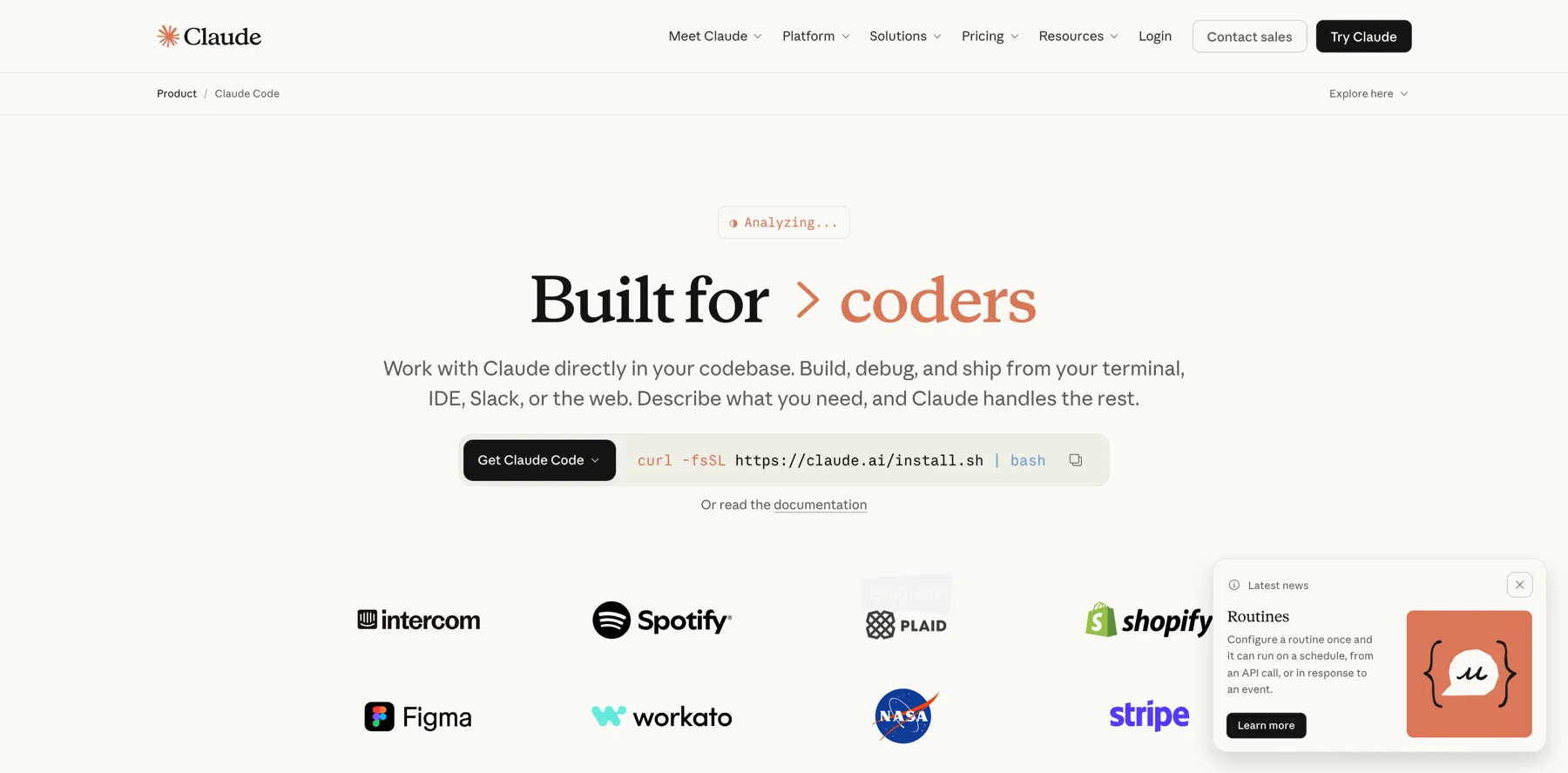
- All 8 terminal install routes, and the 1 Anthropic marks recommended
- Which installs update themselves, and which leave you on an old version
- How to check the install actually worked
And I'll start with the 2 that need nothing installed at all.
 TL;DR
TL;DRKey takeaways
claude --version to confirm the install, and claude doctor to check it properly.You may not need to install anything
Two of the 6 places Claude Code runs need nothing on your machine.
Claude Code on the web runs at claude.ai/code. You sign in, connect GitHub, and the session runs on Anthropic's infrastructure. It keeps going after you close the tab, which is the part people underrate.
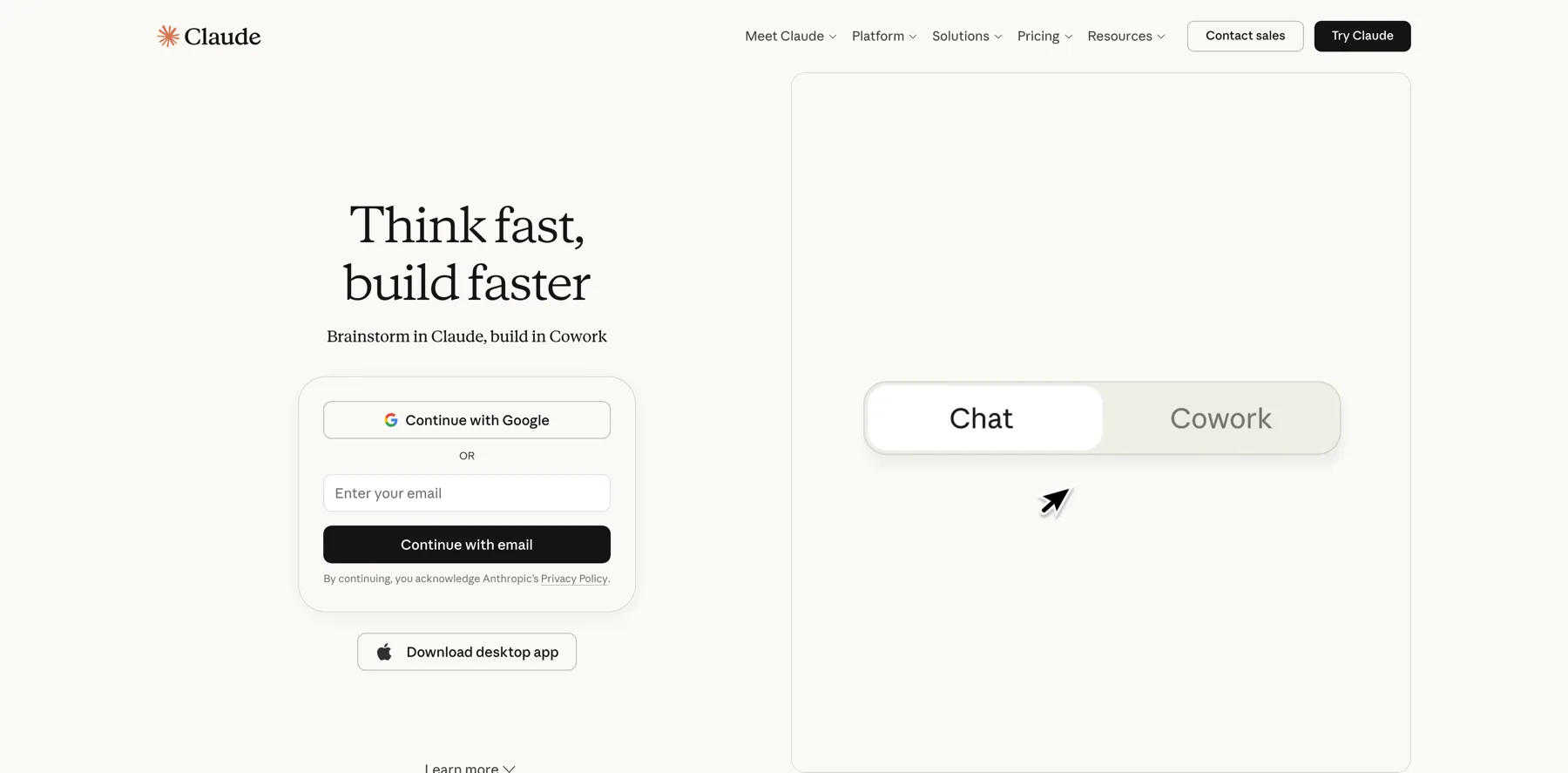
The Claude desktop app is the other one. Download it for macOS or Windows, open the Code tab, choose Local, and pick a folder. It carries Claude Code inside it, so there is no Node.js and no CLI to install separately.
Both run the same engine as the terminal. They use the same model, the same CLAUDE.md and the same connected tools.
So if the terminal is what has been stopping you, it was never the price of entry.
What you need first
You need a paid plan. Claude Code needs Pro, Max, Team, Enterprise or Console, and the free Claude.ai plan does not include it.
You can also point it at a third-party provider instead: Amazon Bedrock, Google Cloud's Agent Platform, or Microsoft Foundry.
Then you need a machine that meets the requirements further down.
Where Claude Code runs, and which need a terminal
The terminal is 1 of 6 places Claude Code runs, and 4 of them never open one. If that is what has been stopping you, start with the desktop app.
- Terminal?
- Yes
- Best for
- Terminal work, scripting, remote servers
- What you get
- The full feature set, because scripting and the Agent SDK are CLI only.
- Terminal?
- No
- Best for
- Visual review, parallel sessions
- What you get
- A diff viewer and an app preview, with Claude Code built in, so there is no CLI to install.
- Terminal?
- No
- Best for
- Staying inside your editor
- What you get
- Inline diffs and file context, and the extension bundles its own copy of the CLI.
- Terminal?
- In the IDE
- Best for
- IntelliJ, PyCharm, WebStorm
- What you get
- A diff viewer and selection sharing, but it runs
claudein the IDE terminal, so it needs the CLI.
- Terminal?
- No
- Best for
- Long tasks that keep running when you close the lid
- What you get
- Cloud sessions at claude.ai/code, managed by Anthropic by default.
- Terminal?
- No
- Best for
- Starting and watching work away from your desk
- What you get
- Cloud sessions in the iOS and Android app, plus Remote Control for a session on your computer.
How to set up Claude Code in each app
Each app below runs the same Claude Code. Pick the one you already work in.
The Claude desktop app
On Linux, the desktop app is in beta and installs with apt on Ubuntu and Debian.
Claude Code on the web
Cloud sessions come with the Pro, Max and Team plans, and with some Enterprise seats.
VS Code
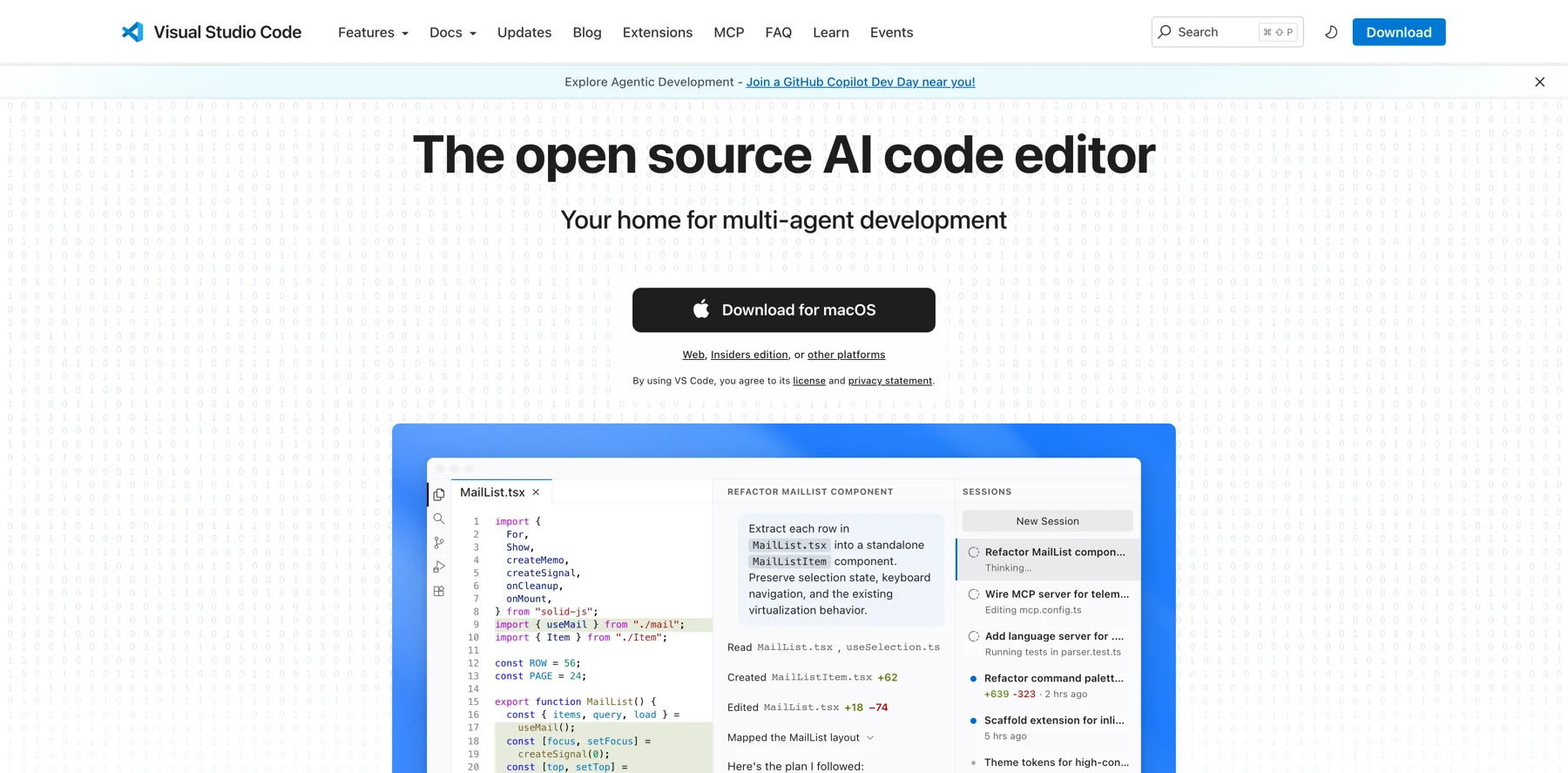
Claude Code installs in VS Code as an extension, so there is no command to run. You need VS Code 1.94.0 or later.
If the extension doesn't appear after installing, restart VS Code. My VS Code setup for Claude Code adds the settings and extensions I use with it.
Cursor
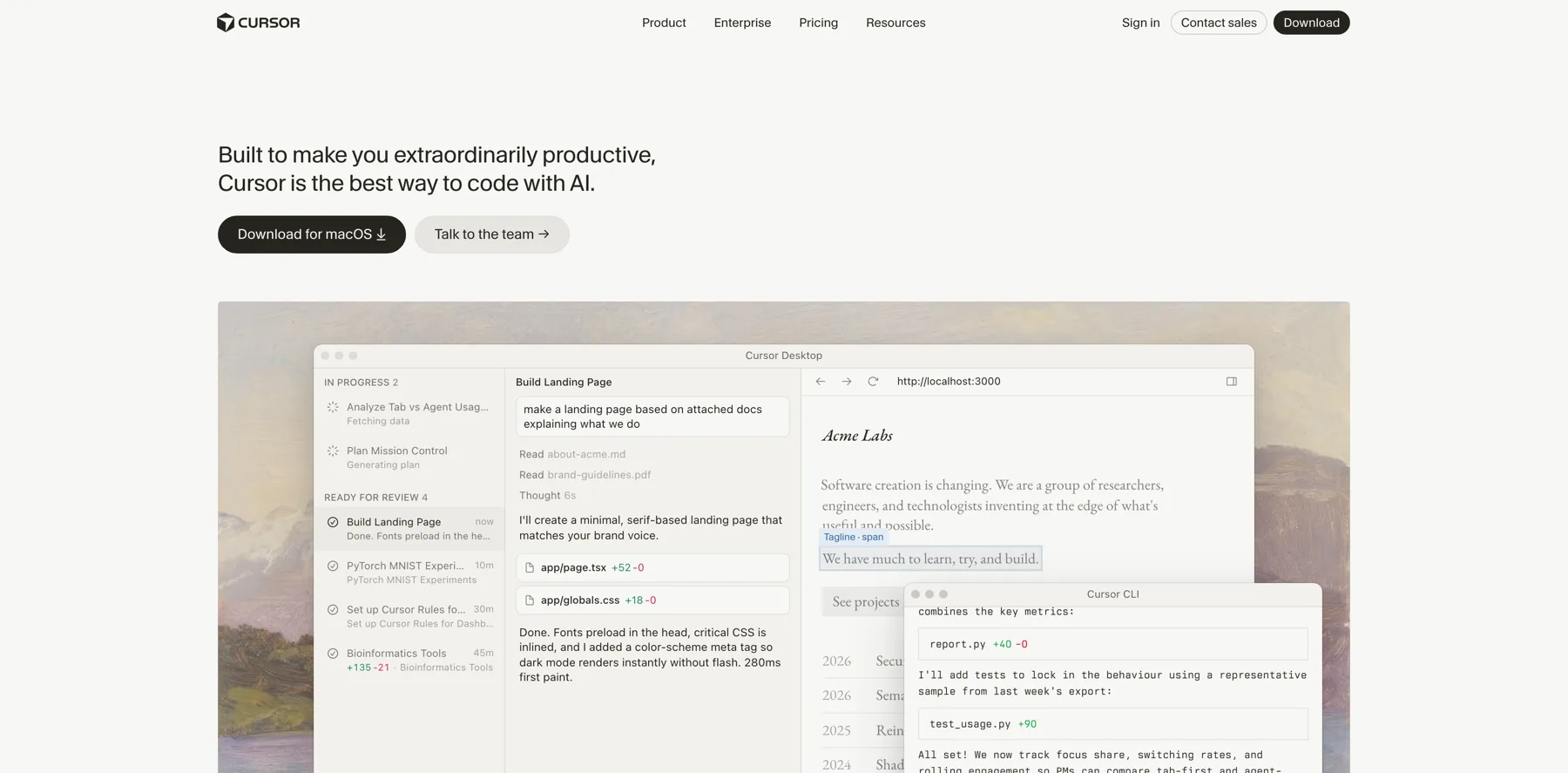
Cursor is built on VS Code, so the same extension works there. Open the Extensions view in Cursor, search for Claude Code, click Install, and sign in the same way.
JetBrains IDEs
The JetBrains plugin runs the claude command in your IDE's own terminal, so it needs the terminal install as well.
It works in IntelliJ, PyCharm, WebStorm and the other JetBrains IDEs.
Your phone
The phone doesn't run code itself. It drives a session in the cloud, or one running on your computer through Remote Control.
Which terminal install should you pick?
Pick the native installer unless you already manage your machine with a package manager.
This is the choice people get wrong, because the cost shows up weeks later. Native installs update themselves in the background. Homebrew, WinGet, apt, dnf and apk do not, so you take that on yourself.
Homebrew also ships 2 casks that are really 2 release channels: claude-code tracks stable, which runs about a week behind and skips releases with major regressions, and claude-code@latest takes new versions as they ship.
You can opt Homebrew and WinGet into automatic upgrades with CLAUDE_CODE_PACKAGE_MANAGER_AUTO_UPDATE=1. apt, dnf and apk cannot, because those need elevated privileges.
System requirements
- macOS 13.0 or later, Windows 10 1809 or later, Ubuntu 20.04, Debian 10, or Alpine 3.19
- 4 GB of RAM, on x64 or ARM64
- Bash, Zsh, PowerShell or CMD
- An internet connection, from a country Anthropic supports
Every way to install Claude Code in the terminal
Copy the line for your machine. Every command here is Anthropic's own, and they all end with the same working install.
macOS, Linux and WSL. This is the one Anthropic marks recommended.
$ curl -fsSL https://claude.ai/install.sh | bashWindows PowerShell. This is the default on Windows 10 1809 and up.
$ irm https://claude.ai/install.ps1 | iexWindows CMD. It's the same installer, for a Command Prompt shell.
$ curl -fsSL https://claude.ai/install.cmd -o install.cmd && install.cmd && del install.cmdHomebrew. Use it if you already manage your Mac with brew. It doesn't update itself, so you update it yourself.
$ brew install --cask claude-codeHomebrew, latest channel. It takes new versions as they ship instead of waiting for the stable channel. It doesn't update itself either.
$ brew install --cask claude-code@latestWinGet. Use it if you already manage Windows with winget. It doesn't update itself, so you update it yourself.
$ winget install Anthropic.ClaudeCodenpm. It's a documented alternative rather than the first path. The docs describe what happens when an npm install cannot auto-update, which implies it normally does, but they never say so outright.
$ npm install -g @anthropic-ai/claude-codeAll 8 routes compared
- When to use it
- This is the one Anthropic marks recommended.
- Command
curl -fsSL https://claude.ai/install.sh | bash
- When to use it
- This is the default on Windows 10 1809 and up.
- Command
irm https://claude.ai/install.ps1 | iex
- When to use it
- It's the same installer, for a Command Prompt shell.
- Command
curl -fsSL https://claude.ai/install.cmd -o install.cmd && install.cmd && del install.cmd
- When to use it
- Use it if you already manage your Mac with brew. It doesn't update itself, so you update it yourself.
- Command
brew install --cask claude-code
- When to use it
- It takes new versions as they ship instead of waiting for the stable channel. It doesn't update itself either.
- Command
brew install --cask claude-code@latest
- When to use it
- Use it if you already manage Windows with winget. It doesn't update itself, so you update it yourself.
- Command
winget install Anthropic.ClaudeCode
- When to use it
- They don't update themselves, and they can't be set to.
- Command
- See the Linux package manager steps in Anthropic's setup docs
- When to use it
- It's a documented alternative rather than the first path. The docs describe what happens when an npm install cannot auto-update, which implies it normally does, but they never say so outright.
- Command
npm install -g @anthropic-ai/claude-code
Check it worked
Confirm it landed. It prints a version such as 2.1.211 (Claude Code).
$ claude --versionCheck the install properly. It runs read-only checks on your install and your settings, and it suggests fixes for any warnings. It does not start a session.
$ claude doctorAI tools in this guide
These are the apps in this guide that I've reviewed:



Then point it at your AI OS
Installing Claude Code gives you the agent. It does not give it your context, and every session still starts with an empty window until you do. Connect it to your AI OS next, and you can see mine on How I use AI.
For your first task, my Claude Code prompt generator writes a prompt with the files, a check Claude can run, and what done looks like.
FAQs about installing Claude Code
Mostly the things that go wrong, and what to do about each one.
Claude Code is Anthropic's agentic coding tool.
It reads your project, edits files and runs commands, and it works through a task rather than answering one question at a time.
It runs in a terminal, in a desktop app, inside VS Code, JetBrains and Cursor, in your browser and on your phone.
Claude Code isn't free.
It needs a Pro, Max, Team, Enterprise or Console account, and the free Claude.ai plan does not include it.
You can also run it against a third-party provider instead: Amazon Bedrock, Google Cloud's Agent Platform, or Microsoft Foundry.
You don't have to use the terminal.
Claude Code runs in 6 places, and the terminal is 1 of them.
The desktop app gives you the same engine with a diff viewer and parallel sessions.
There are extensions for VS Code, Cursor and JetBrains.
And it runs at claude.ai/code and in the phone app.
Those last 2 run in the cloud by default, or you can point them at your own machine with `claude remote-control` and keep everything local.
Open the Extensions view with Cmd+Shift+X on a Mac or Ctrl+Shift+X on Windows, search for Claude Code, and click Install.
There is no command to run, because the extension brings its own copy of Claude Code.
The same extension works in Cursor.
Pick the native installer unless you already manage your machine with a package manager.
Homebrew and WinGet work, but they do not auto-update, so you take on updating it yourself.
Native installs update in the background.
Run `claude --version`.
A working install prints a version number such as 2.1.211 (Claude Code).
For a real check, run `claude doctor`.
It prints install health, settings-file errors and warnings with suggested fixes, without starting a session.
Native installations do, in the background.
Homebrew, WinGet and Linux package manager installations do not.
Those are manual by default, which is the single most common reason someone is running a version from 2 months ago without knowing it.
You can on the local ones.
Configuration, project memory and MCP servers are shared across the CLI, Desktop, VS Code and JetBrains, so all 4 read the same files.
Web and mobile run in Anthropic's cloud, so there your AI OS has to be committed to the repository the session checks out.
Claude Code needs macOS 13.0 or later, Windows 10 1809 or later, or Ubuntu 20.04, Debian 10 or Alpine 3.19.
You need 4 GB of RAM on an x64 or ARM64 processor, one of Bash, Zsh, PowerShell or CMD, and an internet connection from a country Anthropic supports.
It needs nothing else. ripgrep ships with Claude Code and handles search, so if search starts failing that is the piece to look at first.
You sign in with your Anthropic account, the same one you use for Claude.
On the desktop app and on the web you sign in inside the app itself.
In the terminal, run `claude` and it opens a browser to log in.
If the browser does not open, press `c` to copy the URL and paste it yourself.
If the browser shows a code instead of returning you to the terminal, paste that code at the prompt: that happens in WSL2, over SSH and in containers, where the browser cannot reach the local callback.
You will see `Login successful`, then press Enter.
If `ANTHROPIC_API_KEY` is already set it asks once to approve that key instead.
It's worth knowing that an approved key outranks an active Pro or Max subscription, which is the usual cause of an organization error on a perfectly good account.
Type `/logout` to sign out and start again.
You can.
The installer takes a version, so `curl -fsSL https://claude.ai/install.sh | bash -s 2.1.89` pins that one.
Passing `stable` instead of a number puts you on the delayed release channel rather than the newest build.
It doesn't, and this is the part people miss.
Installing it gives you the agent, and it still knows nothing about your business.
Every session starts with an empty context window, so what it knows about you comes from the files it reads on launch.
That is what an AI OS is, and connecting it is the next step.
It depends how it went on.
A native install has its own uninstaller, Homebrew removes it with `brew uninstall --cask claude-code`, and WinGet removes its own.
Removing the binary does not remove your `.claude` directory, so your settings, skills and memory survive a reinstall.
Final thoughts on installing Claude Code
The native installer is the one to pick in the terminal, because it keeps you on the current version without you thinking about it.
And if the terminal is what has been stopping you, it was never the price of entry.
Keep reading:
- What is Claude Code? – what it actually does, and whether it is for you
- VS Code setup for Claude Code – the editor setup I run it in
- Claude Code permission modes – what it may do without asking you first
- Claude Code commands – all 118 of them, grouped by when you reach for one
Then run claude doctor once, before the day you actually need it.
Navid Moazzez
AI business strategist & AI OS builder
Navid Moazzez helps creators and founders master AI and build their own AI Operating System (AI OS) to automate their business and life.
Navid.me is reader-supported. When you buy through links on this site, I may earn an affiliate commission. Learn more.
Similar articles
How to set up VS Code for Claude Code (in one command)
What is a token in AI? The 4 kinds and what each one costs
17 hidden Claude Code commands most people never find
How to build an AI operating system (AI OS)
All 6 Claude Code permission modes, and what each one allows
All 118 Claude Code commands, and when to use each
What is a vibe creator? (And how to become one)
What is vibe coding? (And how it works)
How to build an AI voice agent (step by step)
What is Claude Code? What it does, where it runs and what it costs

10 biggest AI lessons to 10x your creator business (2026)

How to make money with AI as a creator: 15 real ways (2026)
Related free tools


 Free AI newsletter
The most actionable AI newsletter for founders
Every week, get proven AI strategies, curated tools, and step-by-step systems to grow your audience, create better content, and build a profitable creator business.
No fluff, no filler, no BS. Just five minutes each week that might level up your online business and life.
P.S. Sign up now to get free access to my ultimate AI tools guide for creators.