A book description formatter for Amazon, Editorial Reviews, Kobo and Barnes & Noble: each store's own tags, limits and checks, previewed on its page.
Pick where it goes, then paste or write your description: it keeps that store's formatting, counts like that store, and shows it on the store's page.
Where it goes
KDP takes 12 tags, and its 4,000-character limit counts them: bold “test” is 11 characters.
Your description
Enter starts a new paragraph, Shift+Enter a new line in the same one. After a symbol, Enter starts the next line with it; Enter on a line that's only the symbol ends the list.
On Amazon
Write or paste a description to check it.
Check and copy
Write or paste a description to check it.


What you type stays in this browser. The rules come from each store's own help pages, read September 27, 2026, and the previews were measured on real book pages.
This free book description formatter turns your description into what each store accepts: HTML for Amazon's description and Editorial Reviews, formatted text for Kobo, and the basics for Barnes & Noble.
It keeps only the formatting the store you pick takes, counts characters the way that store counts them, and shows the description on the store's own page, cut where the store cuts it.
Here's what each store allows, the rules most authors only meet as an error message, and where to paste the result.
What is an Amazon book description formatter?
An Amazon book description formatter writes your description in the HTML that KDP accepts, so bold text, headings and lists show on your book's page.
KDP's box doesn't show you the page. The formatter does, beside the editor, for every store it formats for.
4 places your description goes
The same description goes to more than one store, and each takes it differently:
| Where | Formatting it takes | Limit | You paste |
|---|---|---|---|
| Amazon description (KDP) | Bold, italics, underline, 3 heading sizes, lists | 4,000 characters, tags counted | HTML |
| Amazon Editorial Reviews | The same as KDP | 2,000 to 20,000 by field, tags counted | HTML |
| Kobo | Bold, italics, underline, lists | None published | Formatted text |
| Barnes & Noble | None published | None published | Formatted text or HTML |
Pick where it goes at the top of the formatter. Anything that store doesn't take is switched off in the toolbar, and your description is made for it when you copy.
The tags KDP allows
KDP supports these tags, and no others:
| Tag | Does |
|---|---|
<b> | Bold |
<i>, <em> | Italic |
<u> | Underline |
<br> | A line break; 2 make an empty line |
<p> | A paragraph |
<h4>, <h5>, <h6> | Headings, largest to smallest |
<ul>, <ol>, <li> | Bulleted and numbered lists |
<h1> to <h3> aren't supported. The formatter turns them into <h4>, and <strong> into <b>.
KDP counts the tags too
KDP's limit is 4,000 characters, and the tags count toward it.
The word test is 4 characters. In bold, it's 11: <b>test</b>. The formatter's count is KDP's, tags included.
Editorial Reviews: each field has its own limit
Editorial Reviews sit below your description on Amazon. You fill them in through Author Central, not KDP, and Author Central offers them for books on Amazon.com.
They take the same tags as the description, and the HTML counts toward each field's limit:
| Field | Limit |
|---|---|
| Review, print book | 4,000 characters each, up to 5 (20,000 in all) |
| Review, Kindle book | 1 review, up to 20,000 characters |
| From the Author | 8,000 characters |
| From the Inside Flap | 8,000 characters |
| From the Back Cover | 8,000 characters |
| About the Author | 2,000 characters |
Pick the field and the edition in the formatter, and the count follows that field's limit.
Credit each review after the quote, the way Amazon's own example does: "A fantastic read." -The New York Times. Author Central also has boxes for the reviewer and the publication.
Here, quotes are the point, so the formatter doesn't flag them the way it does in a description. Links, contact details, dates, prices and requests for reviews still aren't allowed.
Kobo takes formatted text, not code
Kobo's Synopsis box is an editor with bold, italics, underline and lists. It doesn't take HTML: paste code in, and Kobo answers "Sorry, you can't use HTML."
So for Kobo, the formatter copies formatted text, the way a web page copies. Your bold and your lists paste straight in. Headings become bold lines, because Kobo's editor has none.
Kobo doesn't allow links, contact details or social media handles in a synopsis, and the checks look for all 3.
Barnes & Noble publishes no rules
B&N Press doesn't say which formatting its description box takes, or how long a description can be. None of its help pages covers it.
B&N's own book pages show paragraphs, bold, italics and line breaks, so that's what the formatter keeps. Headings become bold lines, and lists become lines that start with • or their number.
B&N shows about the first 500 characters of the overview, then Read More. On 3 book pages on September 27, 2026, the cut came between character 495 and 501, sometimes mid-word.
Headings in 3 sizes
Amazon takes 3 heading sizes: <h4> is the largest and <h6> the smallest. The toolbar has all 3, and a Normal text button that turns a heading back into a paragraph.
Kobo and Barnes & Noble take no headings. Pick either, and the heading buttons switch off.
Symbol lists
A list doesn't have to use bullets. Pick a symbol in the toolbar and it starts the line. Press Enter, and the next line starts with it too. Press Enter on a line that's only the symbol, and the list ends.
The symbols are text characters, not emoji: ✓ ✗ ★ ☆ ◆ ◇ ● ○ ■ □ ▸ ► → • ① ② ③ ④ ⑤. KDP doesn't accept emojis, and none of these is an emoji in Unicode's data.
™, © and ® are in the toolbar too, kept apart from the rest. They show as text, but Unicode lists them as emoji as well, so look at your page after you save.
Enter or Shift+Enter
The 2 keys give 2 kinds of spacing:
- Enter – starts a new paragraph, with space above it.
- Shift+Enter – starts a new line in the same paragraph, with no space, for a tight list or a line of praise.
Both keep their spacing on every store.
"Description may not contain invisible characters"
KDP shows this when your description carries characters you can't see. They come in with text pasted from Word, Google Docs or a web page: zero-width spaces, byte-order marks, soft hyphens and the like.
KDP also rejects <<, >> and <> typed into the text.
The formatter removes invisible characters, and any tag the store doesn't take, as you paste or type. If you edit the HTML by hand, it says what it removed. What you copy has none of them.
Where each store cuts it
Every store shows the start of your description, then a link to the rest:
- Amazon – about 280 pixels on a laptop and 500 on a phone, roughly 14 and 25 lines, then Read more.
- Barnes & Noble – about the first 500 characters, then Read More.
- Kobo – 288 pixels, about 16 lines, then Show more.
Here's Amazon's cut on a laptop, on Fourth Wing's page:
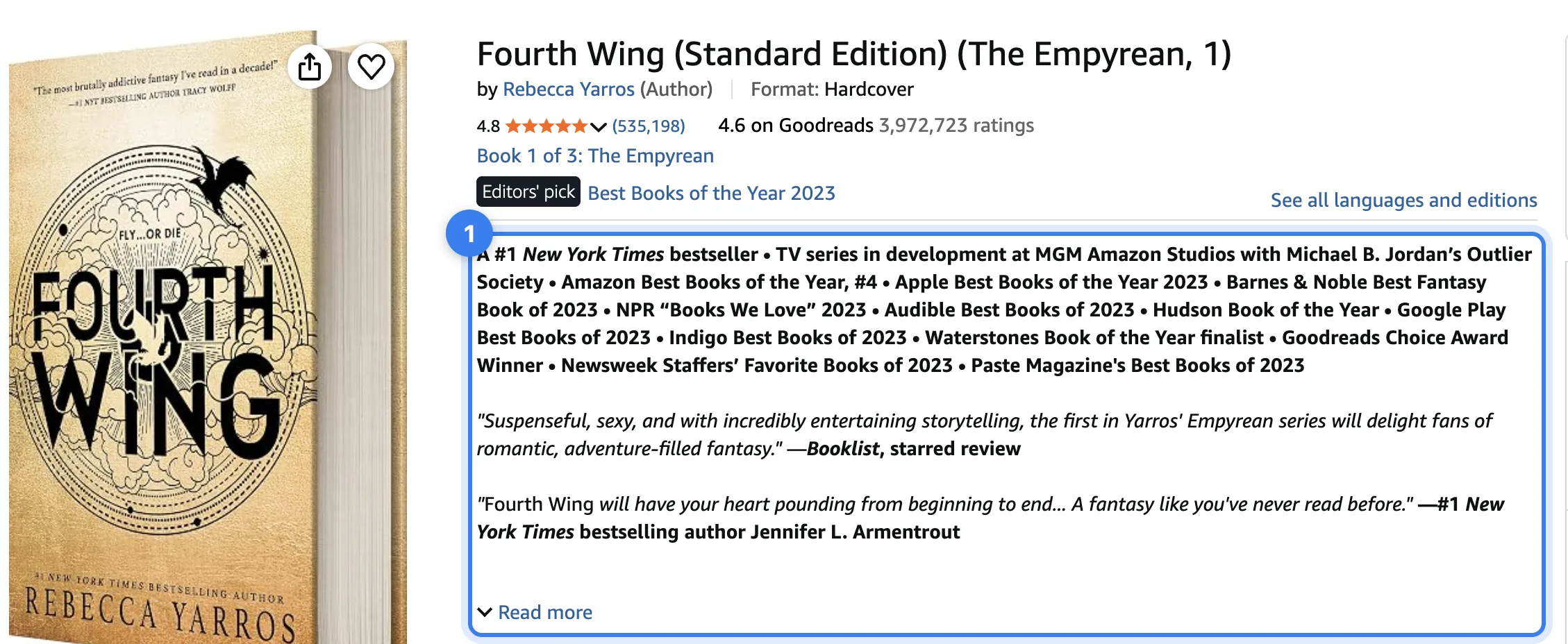
- Everything above Read more is all most shoppers see. Here, it's awards and review quotes; on KDP, those go in Editorial Reviews instead.
The preview beside the editor draws the cut for the store you pick. Put your hook, and the reason to buy, above it.
How to use the book description formatter
What you write is kept in your browser, with your other book tools.
Improve the words with AI
Improve here rewrites your description for the store you picked: a first sentence that draws the reader in, short paragraphs, and that store's formatting only. It keeps every fact and claim as you wrote them, and lists what it changed.
It's free, up to 8 times a day for each visitor, so it stays free for everyone. The same ask, with your description and the store's rules in it, copies into your own AI with no limit.
Need the words first? The book description generator writes 3 from your book's pitch, and the readability checker shows how easy yours is to read.
Where to paste it
Each store has its own box:
- Amazon description – on your KDP Bookshelf, open the book's details and paste the HTML into Description.
- Editorial Reviews – in Author Central, open Books, pick the book and its edition, then Edit book details. Under Your Editorial Reviews, add a review, paste the HTML, and fill in the reviewer and the publication. Each edition is updated on its own.
- Kobo – in Kobo Writing Life, paste the formatted text into Synopsis, in the Describe your eBook step.
- Barnes & Noble – paste into the book's description in B&N Press. It doesn't say whether the box takes HTML, so paste the formatted text first, and the HTML if the formatting drops.
Stores change their rules now and then. Look at your book's page after you save.
Once it's live, the book title generator and the KDP royalty calculator cover the rest of the page: the title, and the price.
Who is the Amazon book description formatter for?
It's for authors selling on Amazon:
- Book description generator – authors who need the words first
- Book subtitle generator – anyone sharpening the promise under the title
- Book title generator – authors still naming the book
- KDP royalty calculator – self-publishers setting the price
More tools like these are on my free tools page.
Amazon Book Description Formatter FAQs
Questions about formatting book descriptions? Here's what to know.
An Amazon book description formatter writes your book description in the HTML that KDP accepts, so bold text, headings and lists show on your Amazon page.
This one also formats it for Amazon Editorial Reviews, Kobo and Barnes & Noble.
KDP allows <br>, <p>, <b>, <i>, <em>, <u>, <h4> to <h6>, <ul>, <ol> and <li> in a book description.
<h1> to <h3> are not supported.
Yes, KDP's 4,000-character limit for a description counts the HTML tags.
The word test is 4 characters, and in bold it's 11.
Paste your description into the formatter and copy the HTML it gives you.
The error comes from hidden characters in text pasted from a document, and the formatter removes them.
Yes, text symbols like ✓, ★, ◆ and ① show as text, and none of them is an emoji in Unicode's data.
KDP doesn't accept emojis, so the formatter flags any character that shows as a picture.
A print book takes up to 5 reviews of 4,000 characters each, 20,000 in all, and a Kindle book takes 1 review of up to 20,000.
From the Author, From the Inside Flap and From the Back Cover take 8,000 characters each, and About the Author 2,000, with the HTML counted.
Kobo's Synopsis box takes formatted text, not HTML code.
Pick Kobo in the formatter and copy the formatted text: bold, italics, underline and lists paste straight in.
B&N Press doesn't publish rules for the description.
Its book pages show paragraphs, bold, italics and line breaks, so the formatter keeps those and turns headings and lists into lines.
On an Amazon book page measured on September 26, 2026, the description was cut at about 280 pixels on a laptop and 500 on a phone: roughly 14 and 25 lines.
Improve here runs up to 8 times a day for each visitor, with a daily cap for everyone together.
The cap keeps it free for everyone, and stops bots from using it up.
The formatter says so, and gives you the same ask to copy into your own AI, with your description and the store's rules in it.
That way has no limit.
Yes, the Amazon book description formatter is free, with no sign-up.
Everything but Improve here runs in your browser.
The Amazon book description formatter is for authors publishing on KDP, Kobo or Barnes & Noble who want a description that looks right and passes each store's checks.
I did. I'm Navid Moazzez, and the Amazon book description formatter is one of my free tools on navid.me.
Read more about me.
The book description generator writes descriptions from your pitch, and the KDP royalty calculator helps price the book.
See all my free tools.
Navid Moazzez
AI business strategist & AI OS builder
Navid Moazzez helps creators and founders master AI and build their own AI Operating System (AI OS) to automate their business and life.
Navid.me is reader-supported. When you buy through links on this site, I may earn an affiliate commission. Learn more.
More free tools

 Amazon
 Amazon KDP

 X
X Bluesky
 LinkedIn
 Threads

 Mastodon
 Instagram
 TikTok
 Pinterest
 YouTube


 Apple Books
 Spotify
 Apple Podcasts


 Free AI newsletter
The most actionable AI newsletter for founders
Every week, get proven AI strategies, curated tools, and step-by-step systems to grow your audience, create better content, and build a profitable creator business.
No fluff, no filler, no BS. Just five minutes each week that might level up your online business and life.
P.S. Sign up now to get free access to my ultimate AI tools guide for creators.