



Free Presentation Generator (+ Guide)
A presentation generator that turns your outline into 16:9 slides, picks a layout for each, and presents them full screen in your browser.
0.0(0 ratings) by Navid Moazzez·Updated Sept 30, 2026·7 min read·Navid.me is reader-supported. When you buy through links on this site, I may earn an affiliate commission. Learn more.




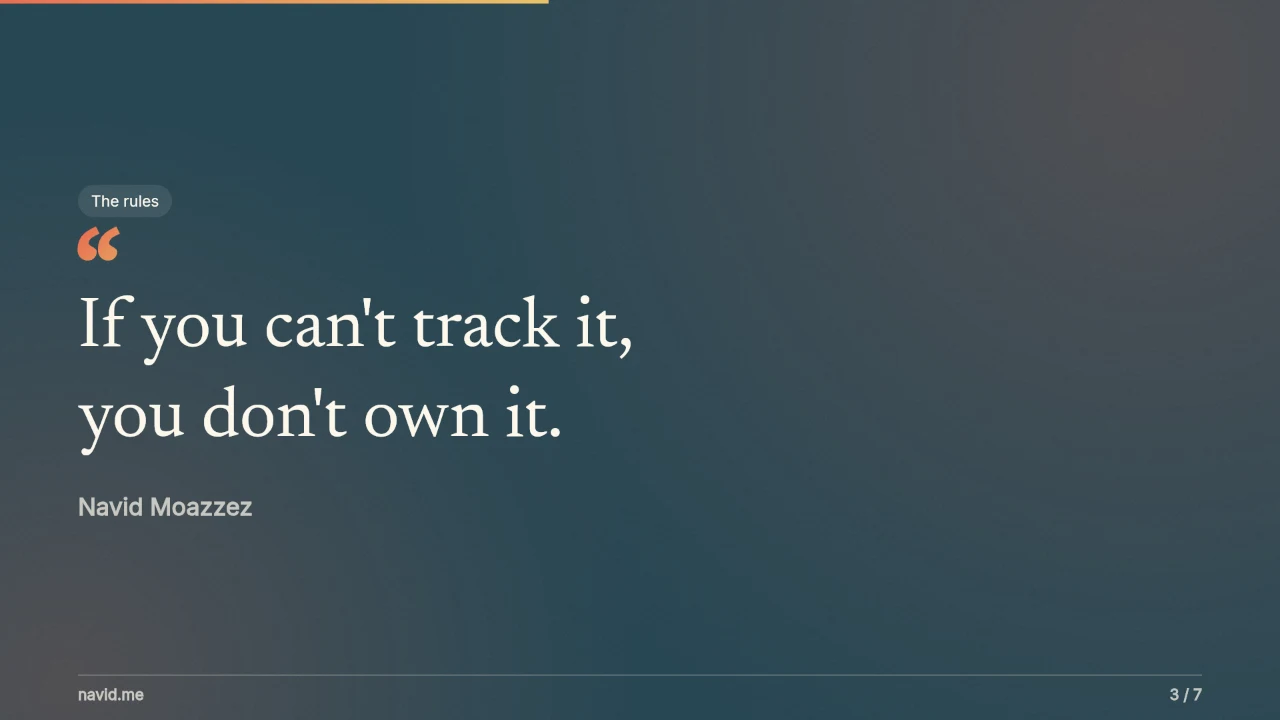
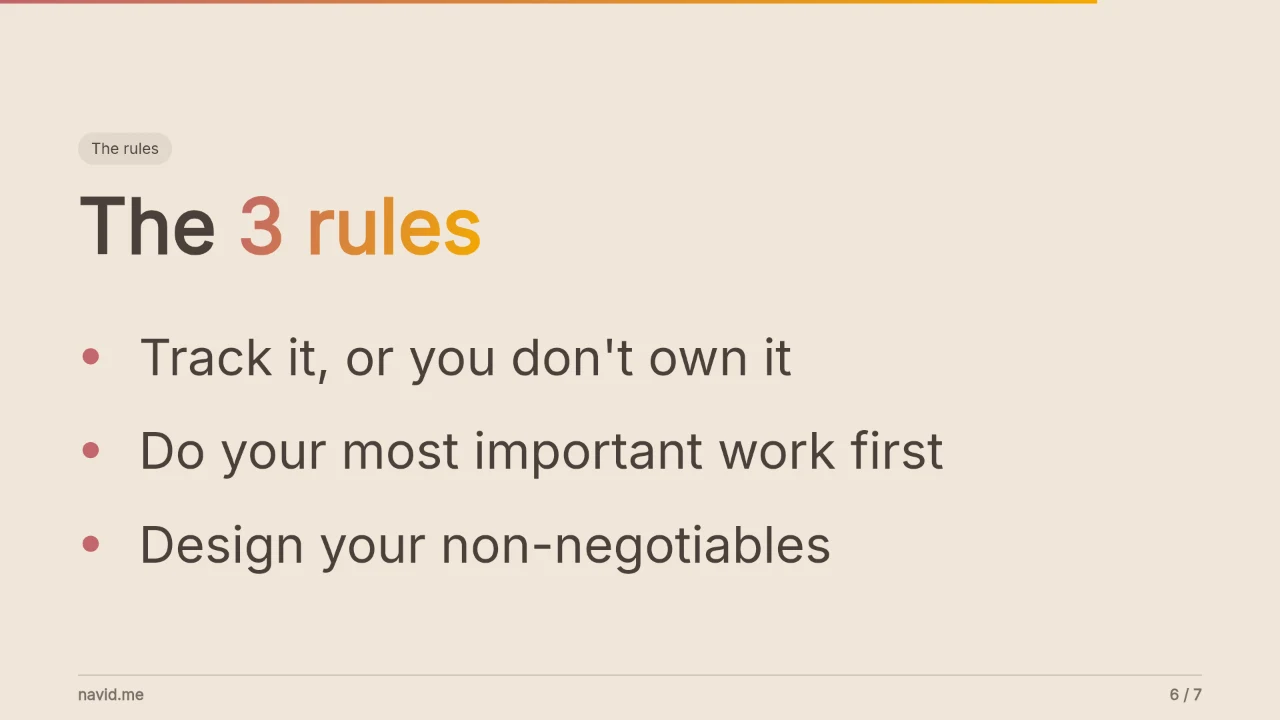

This free presentation generator turns an outline into 16:9 slides. You write what you want to say, and it picks a layout for each slide, puts it in 1 of 12 styles, and presents it full screen in your browser. Download it as a PDF, as images, or as 1 HTML file you can open anywhere.
There's no signup, no watermark and no AI you have to pay for. Everything is drawn in your browser. When you want AI's help with the words, 1 click hands your outline to your own Claude or ChatGPT.
Here's how to make a presentation from an outline, the layouts and styles, how to present, how to change anything with Claude Code or Codex, and how it compares with Gamma, Canva, Google Slides and PowerPoint.
TL;DRKey takeaways
What is a presentation generator?
A presentation generator is a tool that turns your words into finished slides, so you write the talk and it handles the design. This one works from a plain outline: no templates to fill in, no text boxes to drag, and nothing rewritten that you didn't write.
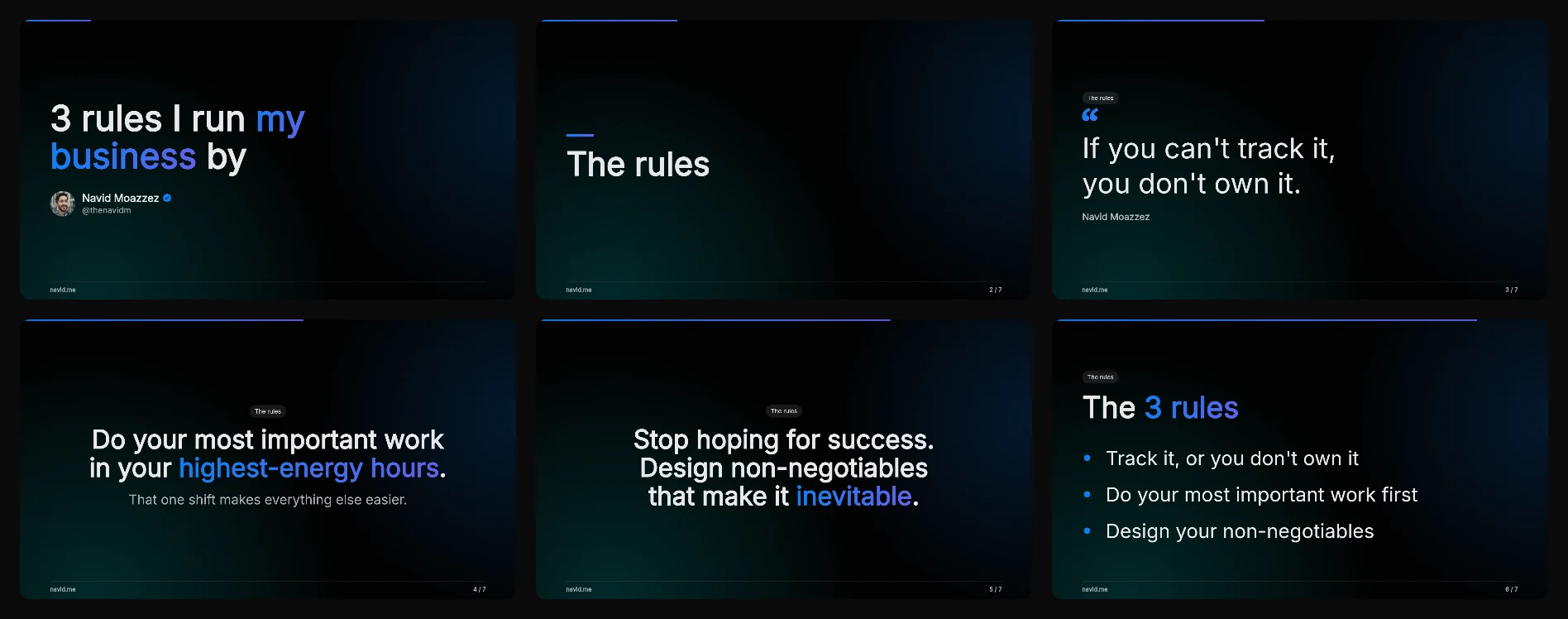
How to make a presentation from an outline
The first slide is your title, with your name and photo under it. The last slide has your photo, your name and your site, so the room knows where to find you.
How to write the outline
The outline is plain text. A few marks shape the slides:
| Write | What it does |
|---|---|
| A blank line | Starts a new slide |
| A line starting with # | The part's name, in a small pill above the slide and the ones after it. Start it with an emoji: # 📊 The numbers. On its own, it's a section slide |
| Lines starting with a dash | A list with chevrons, under the line above them |
| Lines like 100,000+ Creators reached | Stat cards in a row, 2 to 4 |
| Lines like Context: Who you are, in files | Cards, a name in bold and a line about it, 2 to 6 |
| 2 lines ending in a colon, like Now: and After: | 2 panels side by side, the lines under each as its list |
| Lines starting with ✓ | A checklist with green ticks |
Lines between \\\` marks | A terminal, lines starting with > as commands |
| Words in quote marks | A quote, with who said it on the last line |
| A number on the first line | A big number, with what it means under it |
| \Words between stars\ | Those words in the style's gradient color, for the part that matters |
| A line starting with Note: | Your speaker notes for that slide: they show when you present, never on the slide |
A slide's first line is its headline, and its end shows in the style's gradient unless you star the words you want. A line under it is the lead. Keep each slide to one idea: what you want to say out loud goes in Note: lines.
The 12 slide layouts
Each slide's layout comes from how you wrote it:
- Write it like
- The first slide
- Good for
- Your talk's name, with who's giving it
- Write it like
- 2 to 4 lines opening with a number
- Good for
- The numbers behind a claim
- Write it like
- Lines like Name: what it is
- Good for
- The parts of a system, a set of options
- Write it like
- 2 lines ending in a colon, a list under each
- Good for
- A change, now against later
- Write it like
- Lines starting with ✓
- Good for
- Steps to finish, what you'll do next
- Write it like
- Lines starting with a dash or a number
- Good for
- Points, reasons and recaps
- Write it like
- A number on the first line
- Good for
- A result, a price or a count
- Write it like
- Words in quote marks
- Good for
- A line worth remembering
- Write it like
- 1 short sentence, a line under it
- Good for
- A point you say to the room
- Write it like
- 1 short line, or a # line on its own
- Good for
- Moving to the next part
- Write it like
- Lines between \
\\` marks - Good for
- A command or a setup to show
- Write it like
- Anything else: a headline and a lead
- Good for
- A point with one line of context
Pick a different one from the slide's layout menu whenever the guess is wrong. Auto shows which layout it read.
12 presentation styles
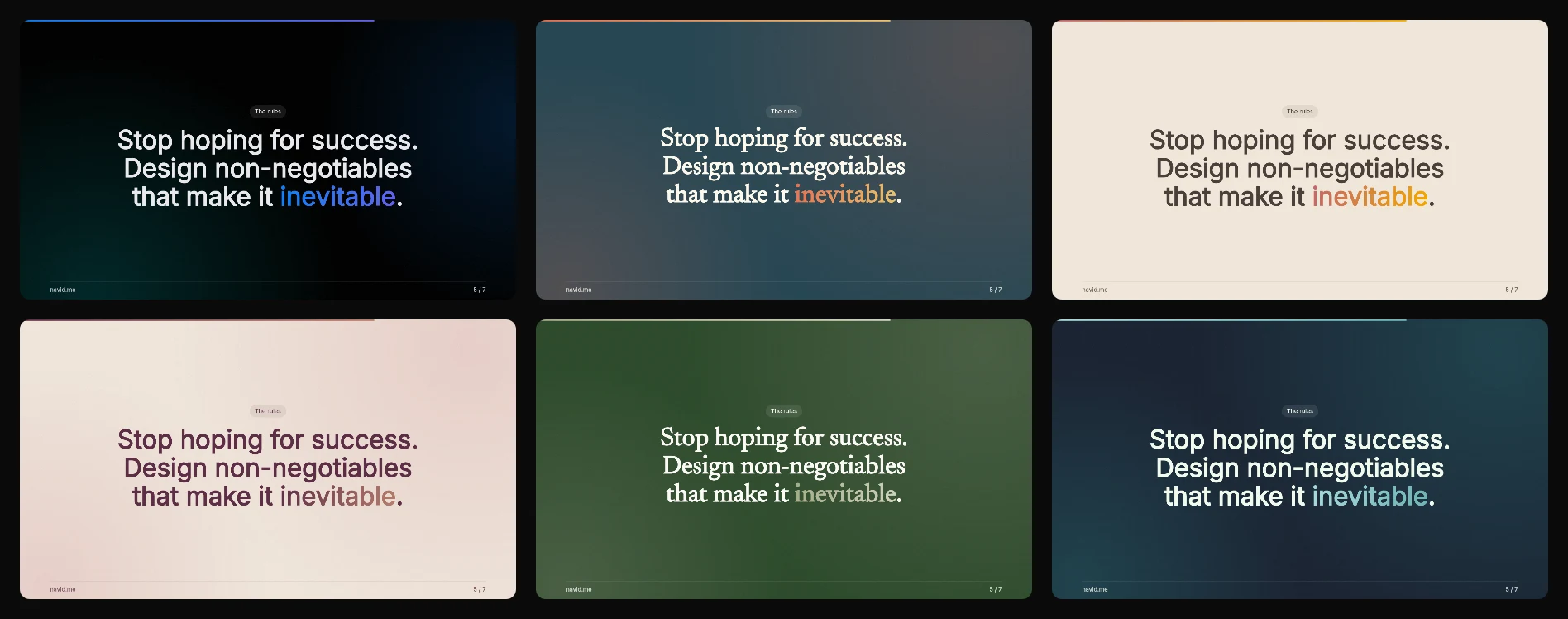
Pick a style under Look. Stage is black with soft teal and blue glows, and your key words in the brand gradient. Its light twin, Stage, light, keeps the same gradient on a pale background.
The other 10 range from warm (Golden hour, Boulevard, Desert rose) to calm (Ocean, Forest, Minimalist):
Every post image and carousel look works on slides too, and so does My brand, with your own colors, font or DESIGN.md.
Your branding, and a line like a document's
Add your site or handle, your photo or your logo, at the top or the bottom of every slide.
With Line on, a thin line runs above your branding, with the slide number beside it, the way a report's footer does. A progress bar across the top shows how far through the talk you are.
How to present your slides
Press Present. Your slides open in a new tab, in a player made for talks. Press F or the full screen button, then:
- Next slide: click, tap, press the right arrow, Space or Enter, or your clicker's forward button (it sends Page Down)
- Previous slide: the left arrow, Backspace, or a click on the left side of the slide
- Any slide: its number key, 1 to 9, or a click on its bar across the top
- All slides at once: O, then click 1 to jump to it
- Your speaker notes: S opens them beside the slide
The controls fade after 3 seconds so the room sees only your slide, and each slide has its own link (#3 is slide 3). Press ⌘P or Ctrl+P to print or save 1 page per slide.
Download HTML saves the same presentation as 1 file. Open it on any computer, even without the internet: only the fonts need it.
Change anything with Claude Code or Codex
The HTML file is plain text. Every slide's words, layout and colors are written inside it, so an AI coding agent can change them in seconds. Open the file in Claude Code or Codex and ask:
- "Make slide 4 a quote"
- "Translate the slides to Spanish"
- "Change the accent to our brand green"
Then open the file again to present the new version. Nothing to import, and no account to log in to.
Write it with AI, or don't
The deck needs no AI. Your outline becomes slides by rules, the same way every time, so nothing is made up.
When you want help with the words, pick 1 under Ask AI to and open it in Claude or ChatGPT:
- Write my outline: turns your notes into slides, 1 idea each
- Tighten each slide: cuts every slide to its point
- Write speaker notes: what to say on each slide
Paste the slides your AI writes into Or paste your AI's slides, and they replace the deck.
Presentation generator vs Gamma, Canva, Google Slides and PowerPoint
Each makes good slides. They differ in where the words come from and what you need before you start:
 This presentation generator
- How you make the slides
- Paste an outline; each slide gets its layout and your style
- Account
- None

- How you make the slides
- AI writes and designs the slides from a prompt. The free plan gives 400 AI credits once, and free decks carry Gamma's branding (Gamma pricing)
- Account
- Yes

- How you make the slides
- Start from a template and edit each slide, with Canva's AI assistant to help
- Account
- Yes

- How you make the slides
- Build each slide in the editor, good for editing with a team
- Account
- Google account

- How you make the slides
- Build each slide in the app
- Account
- Microsoft account
Use this one when you already know what you want to say and want it on screen now. Your words stay yours, and it's free, with no credits to run out.
The HTML file also keeps working without any of these apps.
Presentation size
The slides are 16:9 at 1920 × 1080, which fits every modern screen and projector. It's also PowerPoint's default for a new presentation (Microsoft Support).
For LinkedIn, pick LinkedIn 4:5 or Square instead: the same slides at a size that takes more of the feed.
Slides people remember
- 1 idea per slide. If a slide needs 2 points, it's 2 slides
- Big words, few of them. People read a slide in the seconds before they look back at you
- Color on the words that matter, with stars in the outline, not on every line
- A last slide worth a photo: where to find you, and what to do next
Use the same slides everywhere
The PDF you present from is also a LinkedIn carousel. Post it as a document, and LinkedIn shows each page as a slide (LinkedIn Help).
My LinkedIn carousel generator starts at LinkedIn's size, and my Instagram carousel generator at Instagram's. To turn 1 slide into an image, use my post image generator.
Who is the presentation generator for?
It's for anyone who has to present an idea:
- Post image generator – people who share a slide as a post
- LinkedIn carousel generator – anyone turning the deck into a carousel
- DESIGN.md generator – teams who keep their brand in one file
- How to host a virtual summit – hosts and speakers preparing for an event
The rest of my tools are on the free tools page.
Slide Presentation Generator FAQs
Questions about making a slide presentation? Here's what to know.
A presentation generator is a tool that turns your words into finished slides, so you write the talk and it handles the design. This one works from a plain outline and runs free in your browser.
Yes, it's free: no signup, no watermark, no AI credits and nothing to install. The slides are drawn in your browser.
Paste your outline with a blank line between slides. A line starting with # becomes a section break, lines starting with a dash become bullet points, words in quote marks become a quote, and \*words between stars\* take the style's gradient color.
Yes. This presentation generator is free with no account and no AI credits: you paste an outline and get finished slides. Gamma's free plan gives 400 AI credits once, and its free decks carry Gamma's branding.
Yes. Download HTML gives 1 plain text file with every slide's words, layout and colors inside. Open it in Claude Code or Codex and ask for any change, like a new layout for slide 4 or the slides in Spanish.
The slides are 16:9 at 1920 × 1080, the size of most screens and projectors, and PowerPoint's default. For LinkedIn, pick LinkedIn 4:5 or Square.
Press Present. The slides open in a new tab: press F for full screen, then click, tap or use the arrow keys. A clicker works too, since it sends Page Down and Page Up.
Yes, press Download PDF for 1 page per slide. Download images gives each slide as a PNG, JPG or WebP, and Download HTML saves a file that presents in any browser.
Not as editable text yet. Put the images on your slides, 1 per slide, or present straight from the PDF or the HTML file.
No. Your outline becomes slides by rules, so nothing is made up. Ask AI to is there when you want help: it opens Claude or ChatGPT with your outline, and you paste its slides back.
No, nothing is stored: the slides are drawn in your browser, and your work is kept in this browser only.
I did. I'm Navid Moazzez, and I made the presentation generator as one of my free tools on navid.me.
More about me.

Navid Moazzez
AI business strategist & AI OS builder
Navid Moazzez helps creators and founders master AI and build their own AI Operating System (AI OS) to automate their business and life.

Navid.me is reader-supported. When you buy through links on this site, I may earn an affiliate commission. Read the affiliate disclaimer.
On this page
More free tools

 LinkedIn
 X
X
 Instagram

Related MCP servers & CLIs

 Bluesky
 Substack
 Threads
 Mastodon
 TikTok





 Apple Podcasts
 Free AI newsletter
The most actionable AI newsletter for founders
Every week, get proven AI strategies, curated tools, and step-by-step systems to grow your audience, create better content, and build a profitable creator business.
No fluff, no filler, no BS. Just five minutes each week that might level up your online business and life.
P.S. Sign up now to get free access to my ultimate AI tools guide for creators.